


This guide will explain how to use this feature to access various properties, including volume, area, moments of inertia and centre of gravity with the command Mass Properties (MASSPROP).
Mass Properties - Step-by-step process
1. Creating a Region
First, convert your geometric object into a region:
- Type the command "REGION".
- Select your object.
- Press Enter to confirm.
Check the creation of the region via:
- Confirmation on the command line.
- Properties window (Control + 1).
2. Initial analysis of mass properties
To access the object's properties:
- Type the command "MASSPROP".
- Select your object.
- Review the displaying text window:
- Area.
- Perimeter.
- Coordinates of the centroid.
- Moments of inertia.
3. Correcting the Coordinate Position
Important: For accurate inertia properties, the object's centroid must be at (0,0):
- Write down the coordinates of the current centroid in the Mass Properties window.
- Draw a reference line:
- Starting point: (0,0)
- End point: Current location of the centroid.
Use the move command:
- Select the object.
- Move to the coordinates (0,0).
4. Final Analysis
After repositioning:
- Run the command MASSPROP again.
- Check that the centroid is now at (0,0).
- Review the updated inertia properties.
Save the results if necessary:
- Type "yes" on request.
- A text file will be created with all the properties.
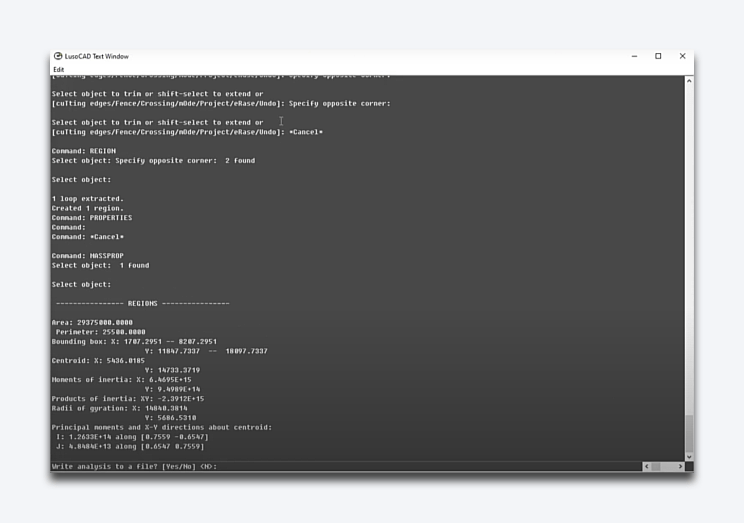
Understanding the Results
Main Properties Displayed:
- Area.
- Perimeter.
- Location of the centroid.
- Moments of inertia.
- Centre of gravity.
Important Considerations
- The inertia properties are only accurate when the centroid is at (0,0).
- Always check the creation of the region before analysing.
- Save the results for future reference.
Tips for Accurate Analysis
- Always check that the region has been created.
- Check the position of the centroid before accepting the results.
- Keep the coordinates of the original object as a reference.
- Save important analysis results as text files.

 English
  Portuguese
  Spanish