

Microsoft® Windows
Processor- Minimum: 1.6 GHZ
- Recommended: 3 GHZ or faster
- Microsoft® Windows 11
- Windows 10 Home, Pro, Enterprise, Education (version 1507 or higher)
- Windows 8.1 with update KB2919355(Pro, Enterprise
- Windows 7 SP1 with the latest Windows updates(Home Premium, Pro, Enterprise, Ultimate)
- LTSC and Windows 10 S are not supported
- Windows Server 2019: Standard and Datacentre
- Windows Server 2016: Standard and Datacentre
- Windows Server 2022 (with Update 2919355): Essentials, Standard, Datacentre
- Minimum: 2 GB RAM
- Recommended: 8 GB RAM or more
- Minimum: 4 GB
- Recommended: 10 GB or more
- Minimum: GPU 1 GB
- Recommended: GPU 2 GB or higher
- Minimum resolution: 1024 x 800 with True Colour
- The licence server and all the computers running the software dependent on the network licences must use the TCP/IP protocol.
- It is recommended to run the licence server on a server-based operating system.
Notes
- LusoCAD and the related tools are developed and compiled with Visual Studio 2022. To ensure normal operation of the software, the operating system needs to be able to install the Visual Studio 2022 environment package normally.
- If there are any problems with the installation or initialisation, you can try right-clicking to extract the installation package and manually install the Visual Studio 2022 environment. If it still doesn't work, the user needs to update the operating system.
- When installing and registering, you must right-click on the icon and run as administrator. If the antivirus software displays alerts during installation, you must allow all operations to ensure a successful installation.
MacOS
- CPU: Apple M series (ARM64)
- Memory: More than 8 GB
- Hard Disk: More than 250 GB
- Graphics Card: Minimum screen resolution of 1024 x 768 pixels
LusoCAD is compatible exclusively with Mac devices that integrate processors Apple Silicon, corresponding to the chip family of the M (M1, M2, M3 or higher). To ensure that LusoCAD works, it is essential to check beforehand that your device has a processor with this architecture.
Instructions for checking whether your Mac uses an Apple Silicon processor
Select the Apple icon , located in the top left-hand corner of the screen.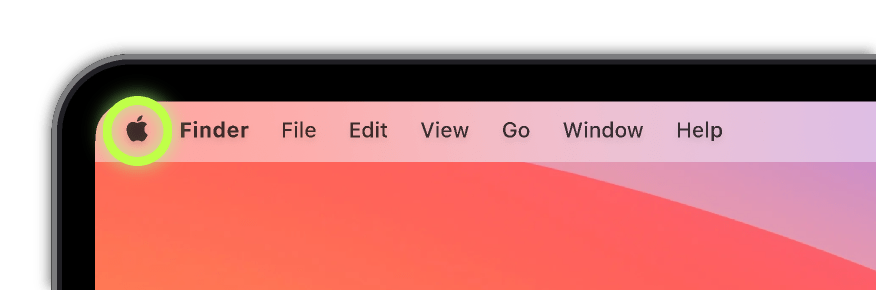
Click on «About this Mac». In the system information window, locate the «Chip» or «Processor» section:
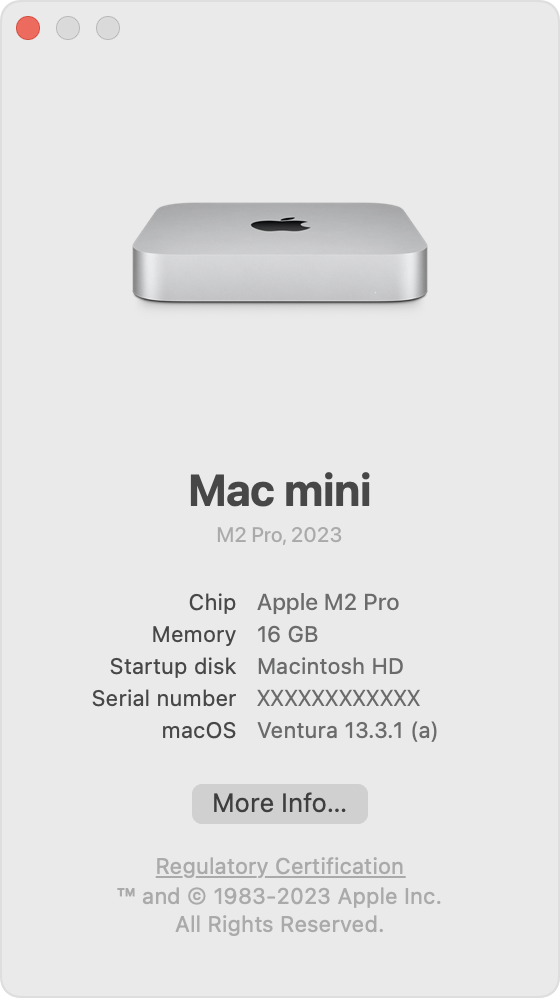
If a name such as «Apple M1 Chip», «Apple M2», «Apple M3», among others, is displayed, your device incorporates an Apple Silicon processor and is compatible with LusoCAD. If the term «Intel» is used instead, the device does not fulfil the necessary technical requirements and cannot be run.

 English
  Portuguese
  Spanish