


The command Fillet is one of the most useful tools in LusoCAD for those working with 2D technical drawings. It allows you to rounding or joining corners using arches, offering greater precision and aesthetics in the design. In this article, We'll explore the essential features of this command and its additional options.
What is the Fillet Command?
O Fillet creates a tangent arc between two 2D objects, usually lines or polylines. This arc can generate:
- Rounded corners, with a defined radius;
- Sharp corners, when the objects are extended to the point of intersection.
This versatility makes the command indispensable in any technical drawing workflow.
How to Access the Fillet Command
You can access Fillet in two ways:
- From range of options;
- Or writing F in the model view.
The programme then asks you to select the first and second object.
1. Create a Simple Fillet
When you select two lines, LusoCAD automatically extends their lengths (if necessary) so that they meet, creating a clean corner - rounded or not, depending on the current settings.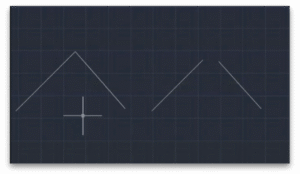
2. Defining the Arc Radius
Before selecting the objects, you can enter the subcommand R to define the arc radius.
For example:
- Write R
- Enter the radius value (e.g: 50)
- Then select the two lines
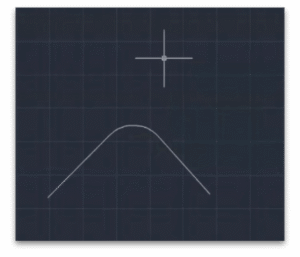
With this, the corner is rounded with the chosen radius. When comparing a fillet with no defined radius and one with a radius of 50, the difference is obvious.
3. Creating an Inverted Arc
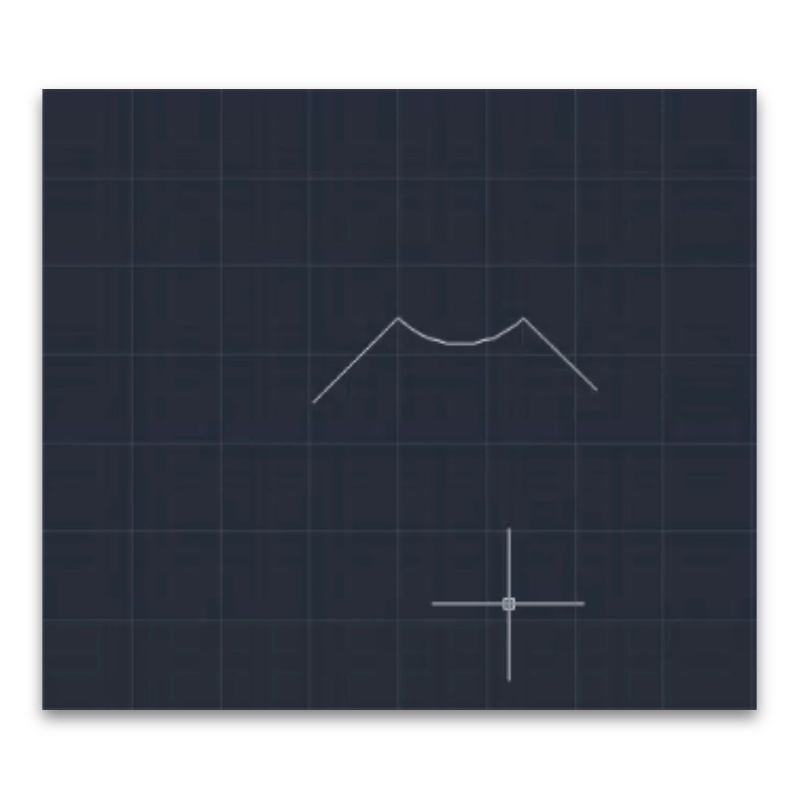
The subcommand Invert (I) allows you to create an arc curved in the opposite direction to the usual one, i.e. a inverted arch.
Just like before:
- Write I
- Keep the radius (for example, 50)
- Select the rows
The result will be visually different, with an “inward” or “outward” arch depending on the geometry.
4. Using the Trim Subcommand
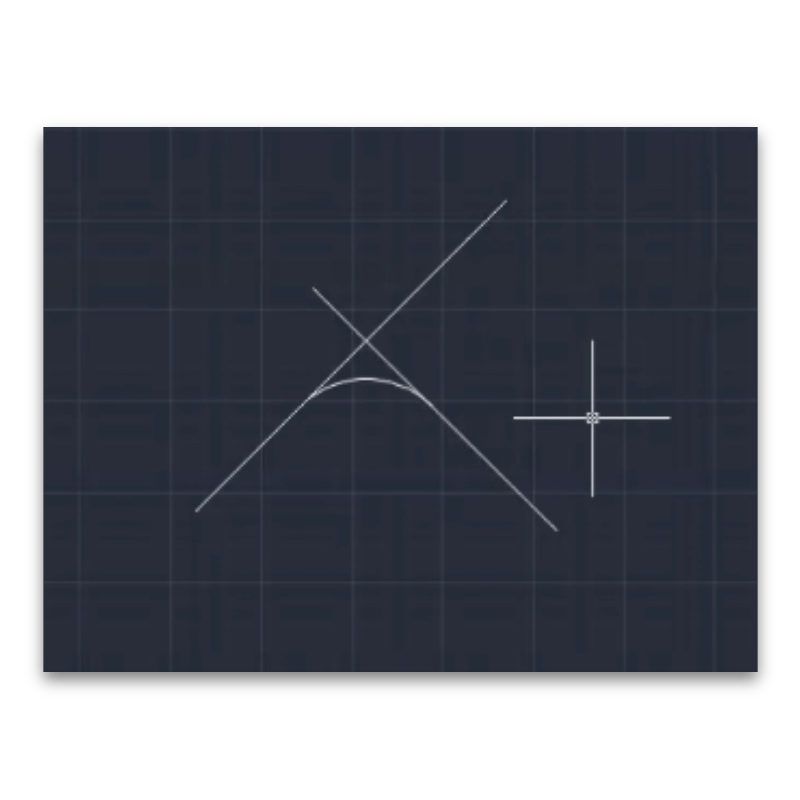
In some situations, two lines may cross beyond the point where we want to apply the fillet. This is where the Trim (T), This controls whether the extra ends should be cut off or not.
- If you are active, the excess segments are removed.
- If you are deactivated, the fillet is created without shortening the lines.
In this example, using:
- Radius 50
- Inverted arch
- Trim deactivated
The fillet is applied without changing the length of the original lines.
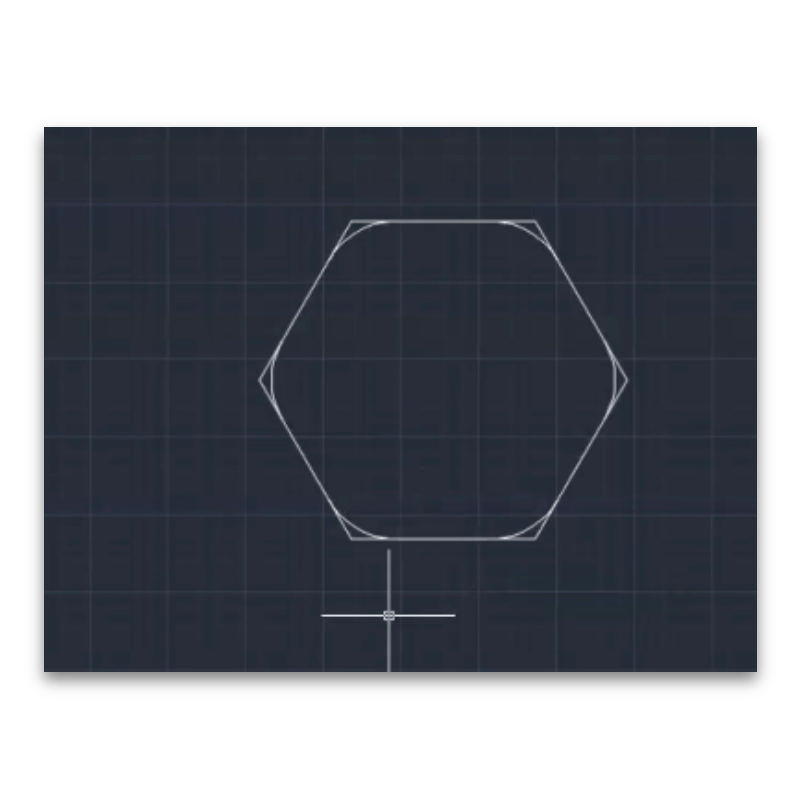
5. Apply Fillet to Polylines
To apply fillet automatically to all the intersections of a polyline, use the subcommand P before selecting it.
LusoCAD will apply the fillet to all vertices of the polyline at once, significantly speeding up work on complex objects.
Conclusion
The command Fillet is a fundamental tool in LusoCAD for creating precise corners - whether rounded or sharp. Master the subcommands Lightning, Invert, Trim and Polilinha allows you to work more efficiently and with greater control over the design.

 English
  Portuguese
  Spanish