

Drawing files can become corrupted due to hardware failures, power outages or unexpected system shutdowns. Just as we saw in previous articles about using the AUDIT commands, the management of Xrefs and even the importance of backups in CAD projects, file integrity is essential to ensure the continuity of work. When a problem occurs, LusoCAD provides several tools that allow you to recover part or all of the drawing data.
1. Use Backup Files (.BAK)
LusoCAD can automatically create backup files whenever you save a drawing.
To configure this option:
- Open the window Options
- Go to the tab Open and Save
- Configure the creation of backup files
- Set an appropriate interval for automatic saving
Whenever you re-save an existing drawing, a file with the extension will be created or updated .BAK.
This file can be used as a backup in case the main drawing gets damaged.
2. Recover a File Using the RECOVER Command
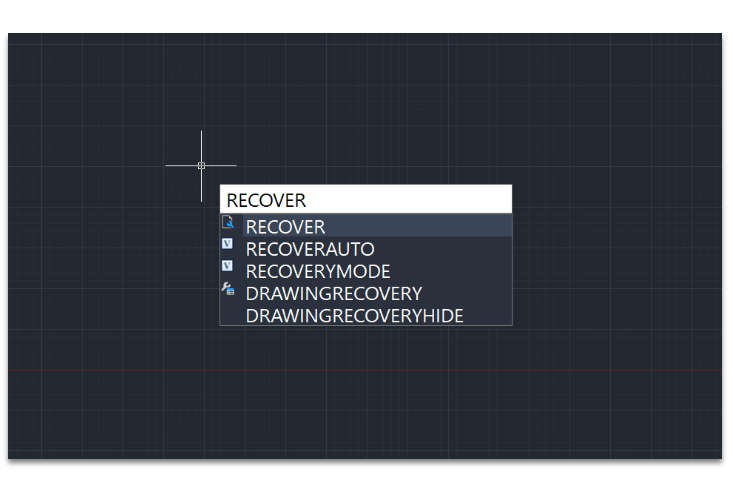
The command RECOVER allows you to check and try to repair a damaged file during the opening process.
To use this tool:
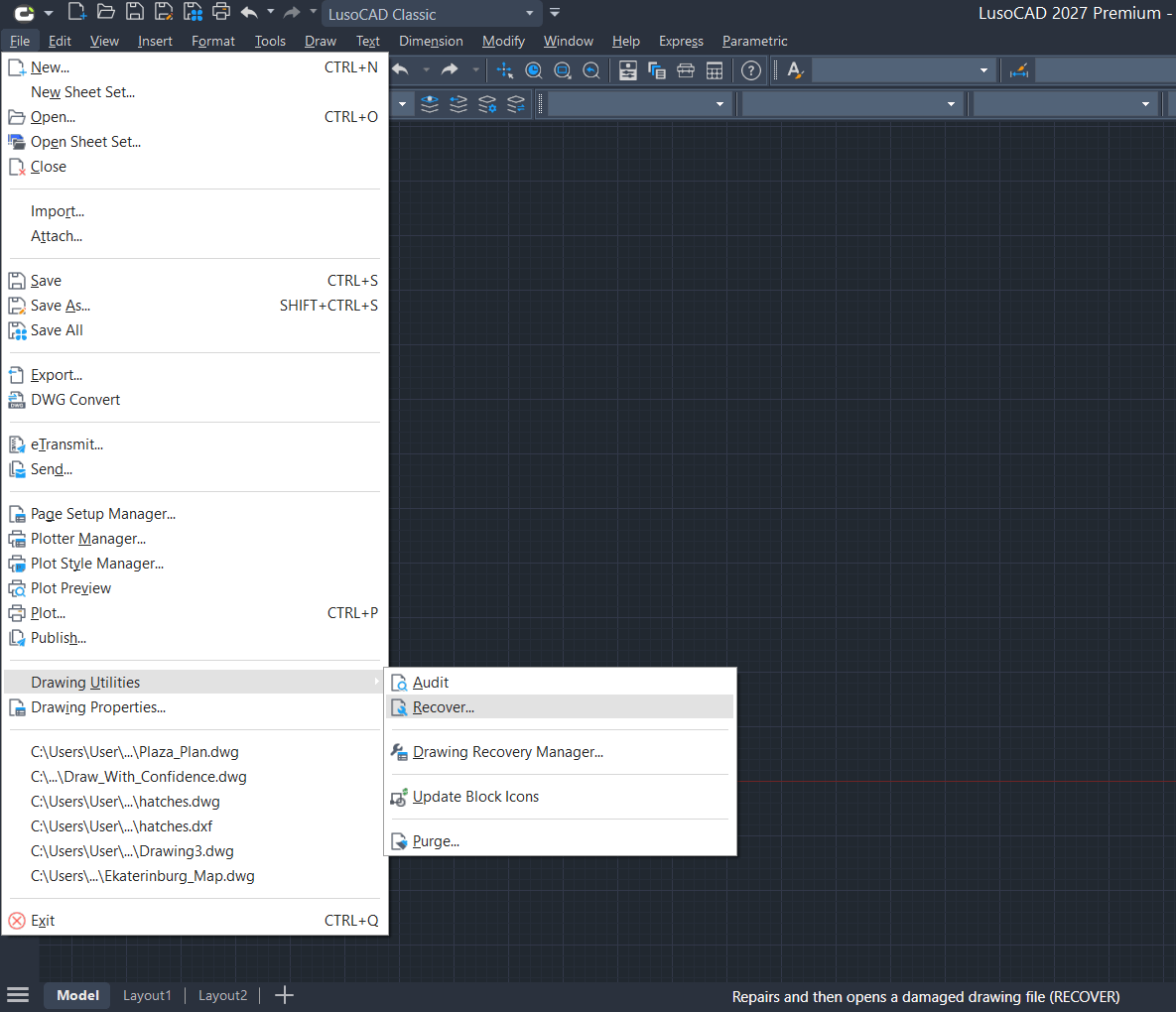
Access File → Drawing Utilities → Recover
or write RECOVER in the command line.
Next:
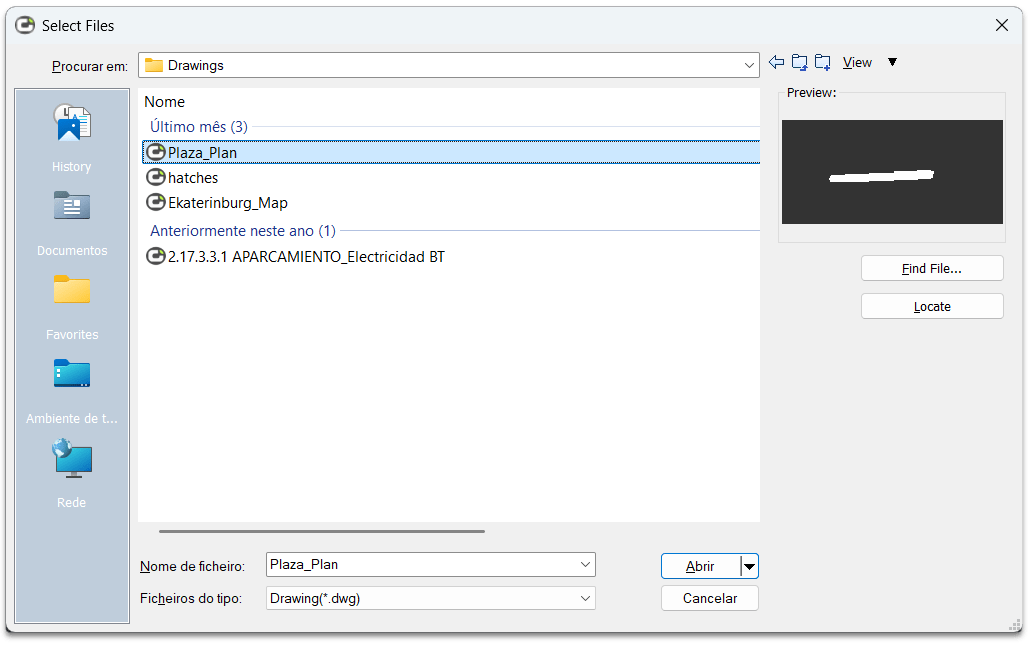
- Select the type of file you want to recover
- Locate the folder where the drawing is located
- Choose the damaged file
- Click on Open or double-click on the drawing
LusoCAD will analyse the file and try to fix any errors found during opening.
3. Check and Fix Errors with the AUDIT Command
After opening the drawing, you can use the command AUDIT to check for additional errors.
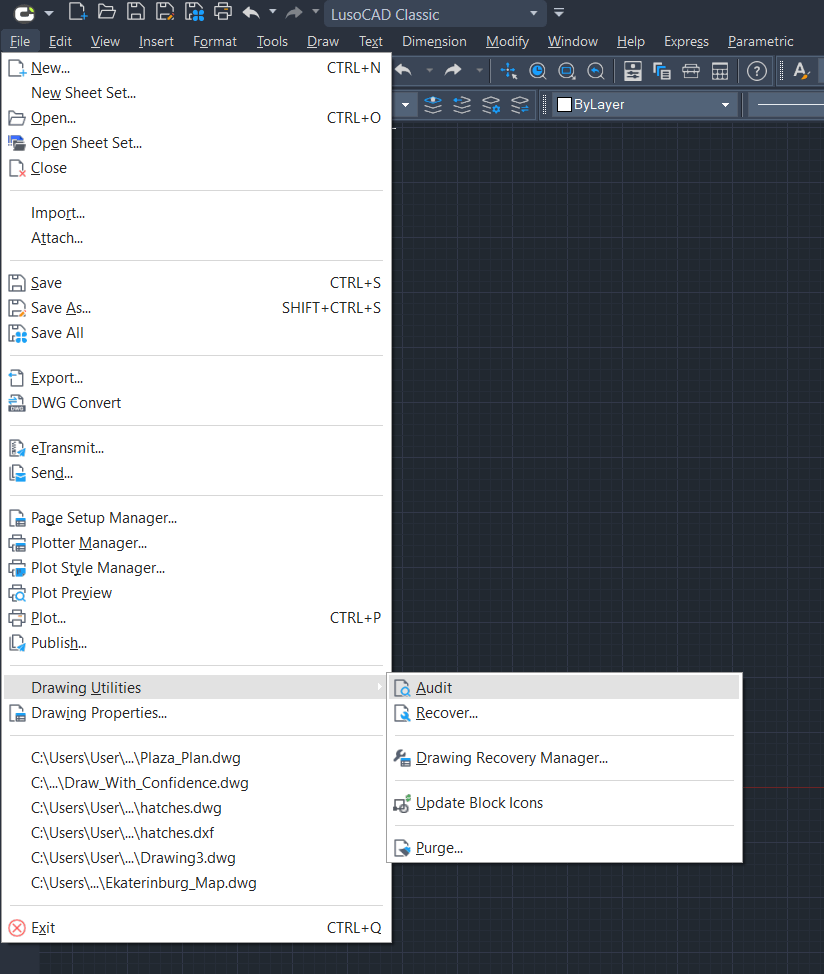
Access File → Drawing Utilities → Audit
or write AUDIT in the command line.
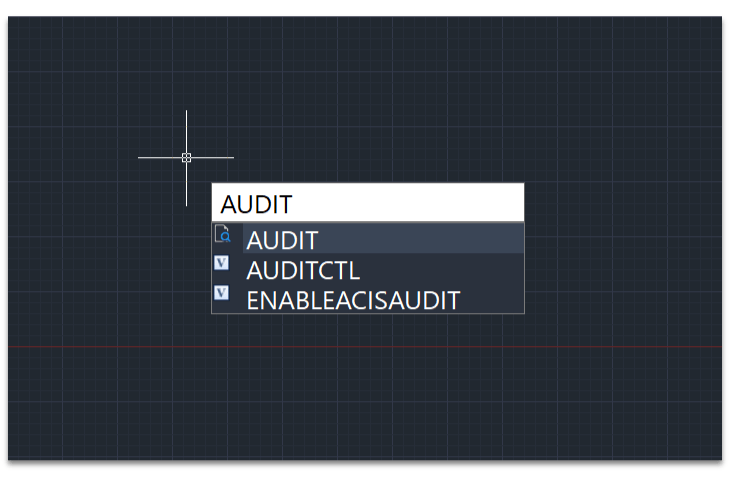
After starting the command, LusoCAD asks if you want to automatically correct the errors found.
Introduction Y to correct the errors.
Or N just to view the detected problems.
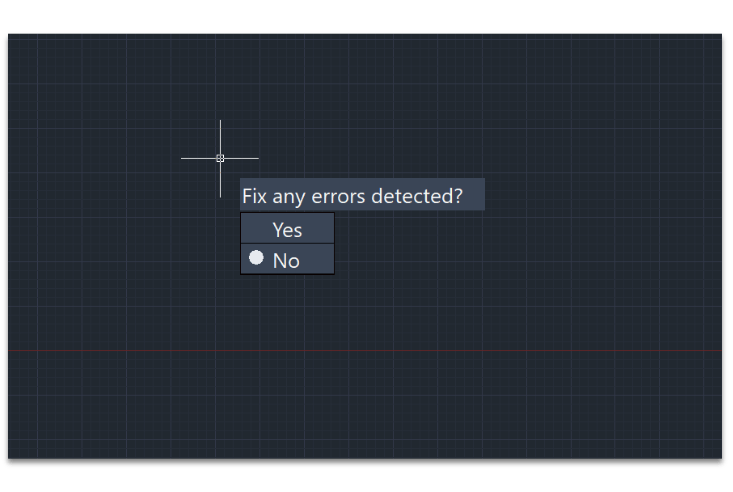
Then press Enter to continue.
Conclusion
If a drawing becomes damaged, LusoCAD provides several tools to recover data and correct errors. The backup files .BAK, along with the commands RECOVER and AUDIT, help to restore drawings and minimise work losses.

 English
  Portuguese
  Spanish