

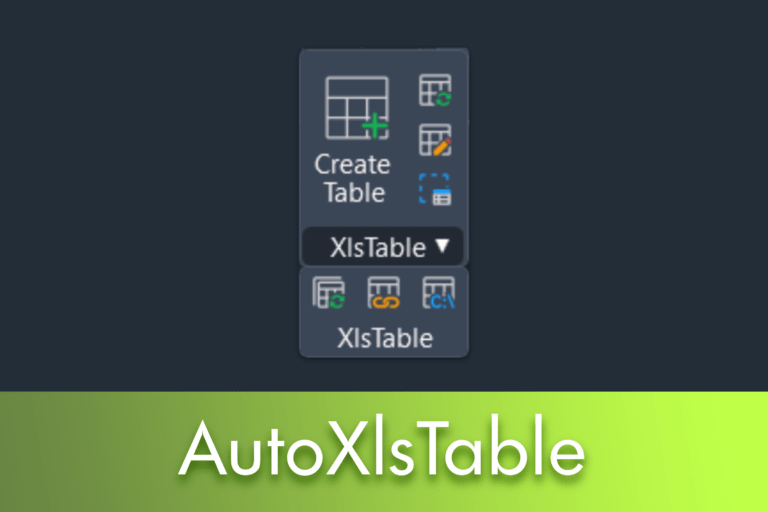
What is AutoXlsTable?
O AutoXlsTable It is an extremely useful tool that assists users in managing Excel tables within the LusoCAD. This functionality, which allows for seamless integration between spreadsheets and the CAD environment, was introduced in LusoCAD 2020.
With AutoXlsTable, users can easily edit imported Excel tables and keep them automatically updated with the original file. Furthermore, it's possible to perform real-time area and length calculations, among many other functions.
How to access AutoXlsTable?
As an Express tool, access is very simple via the Menu: Express > AutoXlsTable.
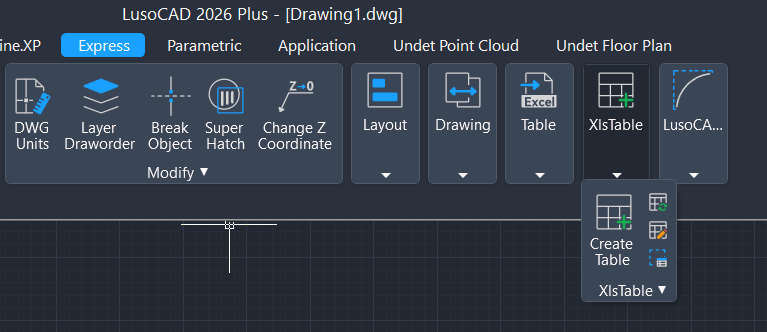
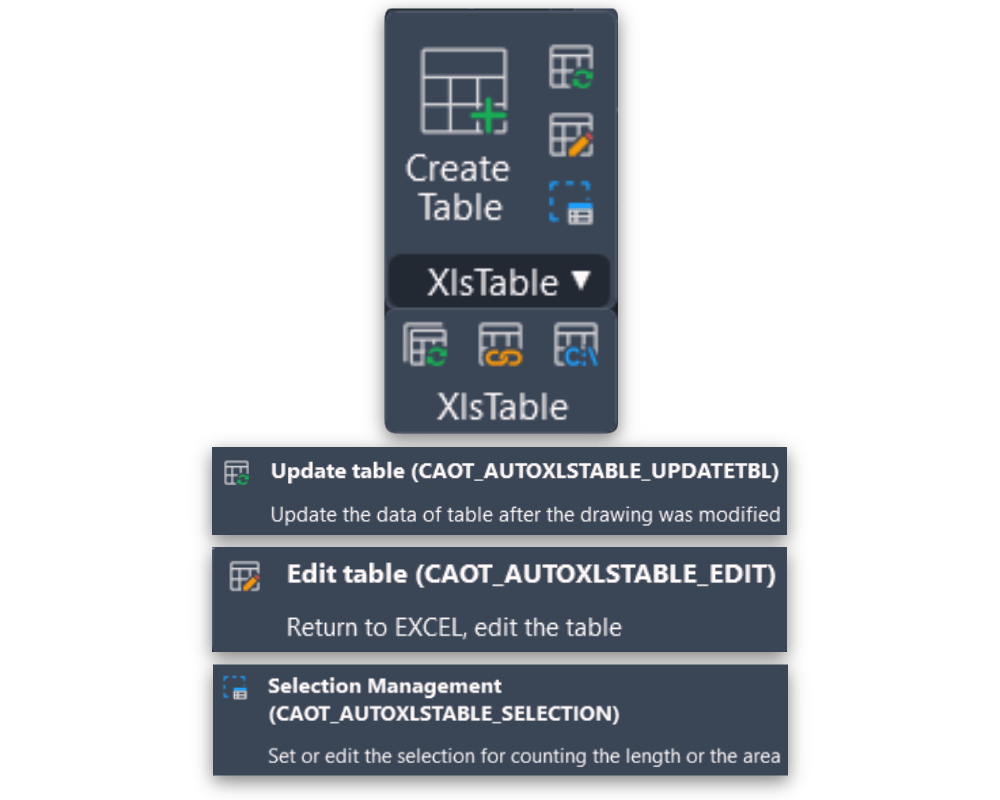
In this menu, you will find the options: Create Table Create Table, Update table (Update Table), Edit Table (Edit Table) and Selection Management (Selection Management). Expanding the menu will also give you access to Update all tables Update All Tables, File Link Management File Link Management Path Settings (Path Definitions).
Step-by-step Tutorial: AutoXlsTable
1. Create Table
Menu: Express > AutoXlsTable > Create Table
Command:
_CAOT_AUTOXLSTABLE_CREATE
On clicking Create Table, an empty Excel sheet will automatically open. You can enter the data manually or copy and paste content from an existing Excel file. When you're finished, click the button Finish no Excel, save the file and, upon returning to LusoCAD, specify the insertion point in the drawing.
2. Update Table
Menu: Express > AutoXlsTable > Update Table
Command:
_CAOT_AUTOXLSTABLE_UPDATETBL
Use this function to synchronise the table in the drawing with any changes made to the external Excel file. Select the table and it will update automatically.
3. Edit Table
Menu: Express > AutoXlsTable > Edit Table
Command:
_CAOT_AUTOXLSTABLE_EDIT
Select the table in LusoCAD to open the original file in Excel. After editing, click Finish. Upon returning to the CAD environment, the changes will be reflected immediately.
4. Selection Management
This tool allows you to calculate the areas and lengths of objects. If the dimensions of the objects change, the calculation results in the table are updated automatically.
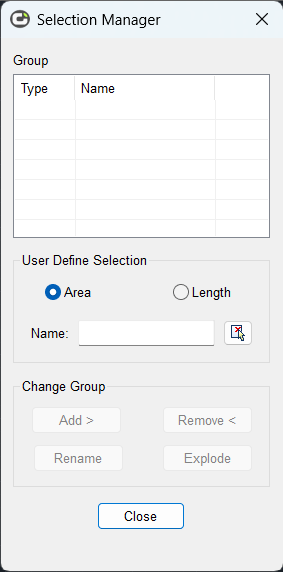
Example: Calculate the area of a circle and a rectangle:
Create a basic table using the function Create Table.
Run the command
CAOT_AUTOXLSTABLE_SELECTIONto open the selection manager.Create a “New Group” (e.g., “Circle”), select the object in the drawing, and press Enter. Repeat for the rectangle.
Use the command Edit Table to open Excel.
Select the desired cell and use the icon Insertion Function to associate the group (Circle or Rectangle) with the cell.
Click on Finish. No LusoCAD, the table will show the areas. If you apply a command Scale In the rectangle, the value in the table will change automatically.
5. Link and Path Management
Update All Tables Update all table objects in the drawing simultaneously.
File Link Management Allows managing, attaching, or changing the external Excel file associated with a specific table.
Path Settings: Defines the path convention (absolute or relative) for Excel files.
Watch the demo video on AutoXlsTable to see these tools in action!

 English
  Portuguese
  Spanish