

CAD projects rarely live alone: a drawing can reference XREFs, text and plotting styles (CTB/STB), fonts, images, Excel tables, 3D textures/materials and other external resources. Putting everything together by hand is time-consuming and unreliable. eTransmit itself creates a package (folder or ZIP) with the DWG and all the dependencies, ready to send to customers and partners-no broken paths or “missing sources/CTB”.
What is eTransmit and when to use it
- Automatically collates all the files referenced by a DWG.
- It allows you to normalise paths, convert to older versions of the DWG format, purge “rubbish” and even incorporate XREFs (bind) in the master file.
- Ideal for handing over to third parties, project archiving, audits or migration between teams/software balances.
How to start eTransmit
- Save the drawing.
- Menu File > eTransmit.

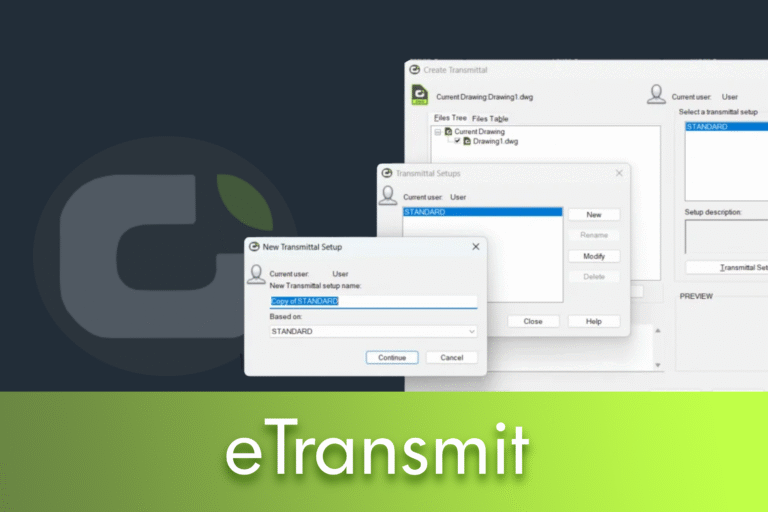
The “Create Transmittal” window lists everything the drawing uses. You can switch between the tree view and the “Files Table” tab.
- Current Drawings: view the attachments and use “Add File” to include more DWGs in the same package.
- Enter Notes: adds notes for the recipient (instructions, contacts, review).
- View Report: opens the TXT report that will be generated with the package.
Transmittal Setups: creates reusable profiles
Click on “Transmittal Setups” > “New” to create a profile and “Continue” to edit it. These profiles save your choices and avoid having to configure everything all over again each time you send it.


- Type of package and location
- Transmittal package type: folder or ZIP file.
- File format: chooses the target DWG version (useful when the recipient uses an older version).
- Destination: defines the folder where the package will be saved.
- Path Options (how to organise files)
- Use organised folder structure: recreate the original tree (useful if you want to reflect the organisation of the project).
- Place all files in one folder: puts everything in a single folder (avoids broken paths; great for quick sharing).
- Keep files and folders as is: preserves the logic of subfolders within the package, ensuring that references remain valid.
- Actions (what to do with the drawings)
- Bind external references: converts XREFs into blocks within the master DWG-reduces dependencies, increases file size and eliminates external references.
- Purge drawings: removes unused layers, blocks and linetypes before packing-cleaner, lighter files.
- Include/Exclude file types: decide whether to take plotting styles (CTB/STB), fonts, material textures, images, data links (Excel), etc. E.g. you can exclude the Excel sheet if the partner already has it.
Define everything, click “OK” to close the setup and “OK” again to generate the package. eTransmit will publish the ZIP/folder to the defined destination and create a TXT report detailing the files included.
Convert to previous DWG versions
Need compatibility with older software? In “Modify Transmittal Setup” choose the desired version under “File format”. eTransmit will convert all the DWGs included in the package at once, guaranteeing opening without version messages.
Packaging strategies (when to use what)
- A single DWG, lots of attachments and a less experienced recipient
- Uses “Place all files in one folder” + “Bind external references”. Minimises support calls for broken paths.
- Technical team that masters XREFs and needs to edit references
- Keep the folder structure and don't bind. Guarantees collaboration and modular updates.
- Formal delivery/filing
- Activates “Purge drawings” to clean up and reduce size; includes CTB/STB, fonts and textures for reproducibility.
- Customers with old versions
- Convert the “File format” to the appropriate version in the setup.
Best practice and problem solving
- Checks the TXT report: confirms what has been included and any reference warnings.
- Broken paths in the recipient: prefer “one folder” or ensure consistent relative paths.
- Lack of fonts/CTB: includes fonts and plotting tables when the partner does not share the same library.
- Packages that are too large: activates “Purge”, compresses to ZIP and evaluates deleting heavy data links (Excel) if they are not needed.
- XREFs that need to remain editable: avoids “Bind external references”, explains to the partner how to attach XREFs in relative.
Quick checklist before sending
- Saved drawing with no mistakes.
- Setup chosen and reviewed (package type, file version, paths, actions).
- Included: XREFs, CTB/STB, fonts, images, textures, data links-just what you need.
- Locally tested package (opens the ZIP and validates a DWG).
- TXT report filed with the submission.

 English
  Portuguese
  Spanish