

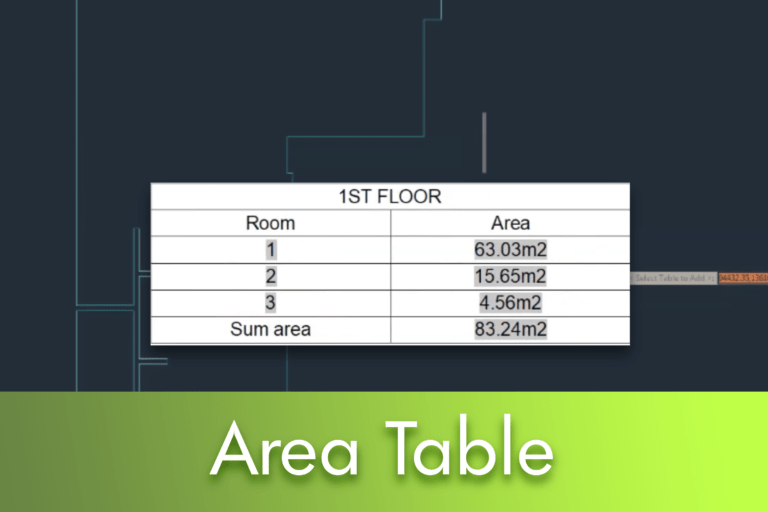
The command Area Table allows for the automatic sizing and calculation of the area of closed objects, generating a table with the results directly in the technical drawing. This functionality, which has become an essential tool for structural engineering workflows, was introduced in LusoCAD 2020.
With this tool, areas or objects can be identified by an area number or symbol, with table data being generated simultaneously. One of the great advantages is the dynamism: the values in the table are automatically updated whenever the area number or size changes. Furthermore, data can be exported to text files or spreadsheet formats.
How to access the Area Table command?
There are two main methods to activate this function in LusoCAD:
Command line Type the command
AREATABLEand press Enter.Express Menu Access via the path Express > Dimension > Area Table.

Step-by-Step Tutorial
To understand how it works in practice, follow this example:
Preparation: Draw closed objects, such as a floor plan, on your workspace.
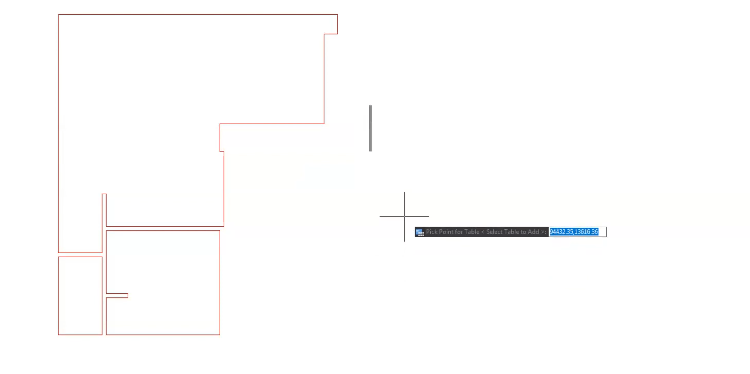
Activation Enter the command
AREATABLEto open the “Table of Areas” configuration window.

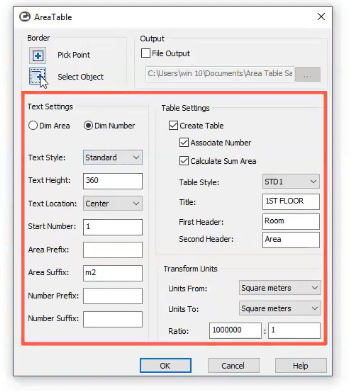
Configuration: To generate the table, ensure that the option Create Table is selected. If you require the total summation of the areas, also activate the option Calculate Sum Area. Click OK to confirm the settings.
Positioning After closing the window, the software will prompt you to set the insertion pointTable Point) or select an existing table to add data to (Select Table to Add).
Object Selection: After choosing the table location, use the option Object and select the circles and ellipses one by one, in the desired order (e.g., from left to right).
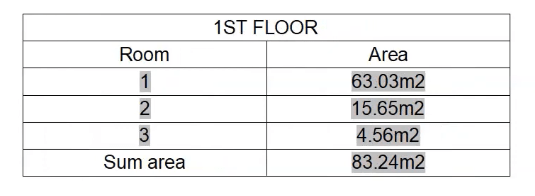
Finishing The table will appear instantly at the selected point, presenting all area calculations and identifiers.

 English
  Portuguese
  Spanish