


Blocks are an essential tool in CAD, allowing elements to be reused, file sizes to be reduced, and changes to be made quickly and consistently. Working correctly with blocks significantly improves productivity and drawing organisation.
When working with blocks, one of the following questions commonly arises:
“How can I change the base point location of a block without exploding it?”
“How to move the base point of a block?”
In LusoCAD, these situations can be resolved simply using the command CHANGEBASE, which allows you to change the insertion point of a block without compromising its geometry.
What is the CHANGEBASE Command?
The command CHANGEBASE it is used to redefine the base point of an existing block. This base point is fundamental as it determines how the block is inserted, moved or aligned in the drawing.
With CHANGEBASE, it is possible to:
- Change the base point while keeping the block geometry in the same location
- Move the block geometry while keeping the base point in its original position
This flexibility allows existing blocks to be adjusted without needing to recreate or explode them.
How to access the CHANGEBASE command
There are several ways to access the command in LusoCAD:
Via the Menu (2D Drafting Workspace)
Select: Express > Blocks > Change Base Point

Through the Menu (Classic Environment)
Select: Express > Blocks > Change Base Point

Via the Command Line
Write CHANGEBASE
and before Enter.
Step-by-Step Tutorial
1. Execute the Command
After starting the CHANGEBASE command, LusoCAD prompts you to select the block whose base you wish to change.
2. Select the block
Click the desired block in the drawing and confirm the selection.

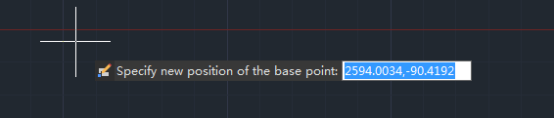
3. Define the New Base Point
Indicate on screen the new location for the block's base point.
4. Choose Geometry Behaviour
After defining the new base point, LusoCAD presents two options:

Moving objects
- The block's geometry is moved
- The base point remains in the original position in the drawing
Move Base Point
- The base point is moved
- The block's geometry remains in the same position.
Choose the most suitable option according to the project's needs.
Advantages of CHANGEBASE
- Avoid block explosion and recreation
- Maintain block integrity
- Allow quick corrections in existing block libraries
- Facilitates future alignments and insertions
The command CHANGEBASE No LusoCAD is a simple yet extremely effective tool for adjusting existing blocks. By allowing controlled alteration of the base point, this command contributes to cleaner, more organised, and professional workflows.
If you frequently work with block libraries or complex projects, mastering this command can save time and prevent insertion errors.

 English
  Portuguese
  Spanish