

BIM (Building Information Modeling) has become an essential element in the architecture, engineering and construction sectors. Far beyond traditional 2D drawings, BIM workflows make it possible to work with intelligent models containing geometric, technical and documentary information, improving coordination between teams and reducing errors during project development.
As projects become more collaborative, the ability to import, visualise and exchange BIM data between different platforms is increasingly important. Just like tools such as Xrefs, dynamic blocks or shared libraries help to improve productivity in CAD, BIM support allows for more efficient integration between different disciplines and software.
LusoCAD includes dedicated tools for working with industry-standard BIM formats, enabling the importation, visualisation, organisation and exportation of models along with their associated data.
In this article, we explore the main BIM features available in LusoCAD.
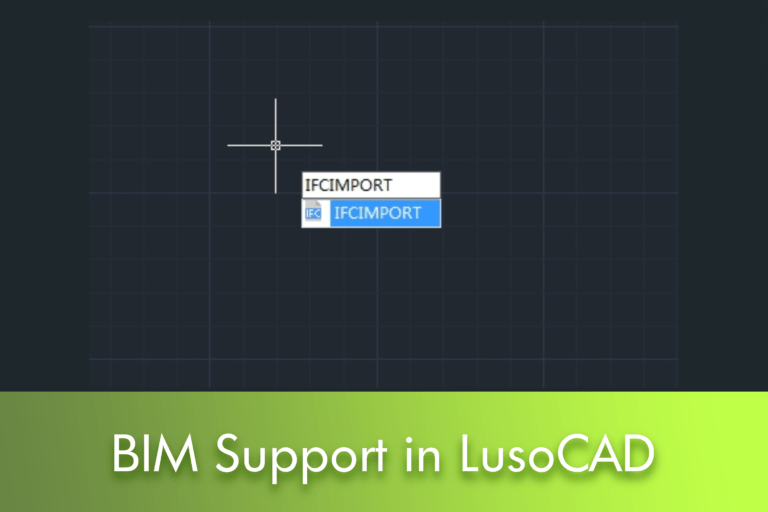
1. Import IFC Files with Complete BIM Information
The format IFC (Industry Foundation Classes) it is one of the most widely used standards for exchanging BIM information between different applications.
To open an IFC file you can use:
or access:

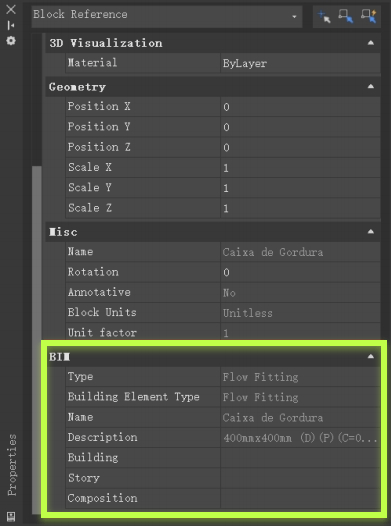
Following the import, the BIM model is available with its respective associated data.
When selecting a model element, you can consult information such as:
- Object type
- BIM properties
- Standings
- Associated technical data
This information is accessible via the properties panel.
2. Managing BIM Models with the Structure Panel
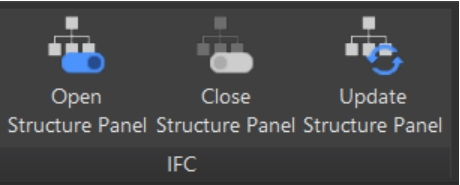
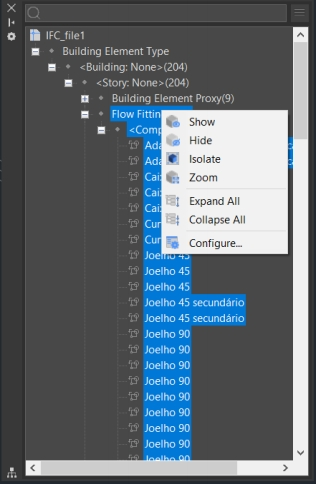
One of the most useful tools for working with BIM models is the Structure Panel.
This dashboard presents a hierarchical structure of the model elements, organised based on the BIM data.
To open the panel:
To finish:
For updating:
What can you do in the Structure Panel?
Through this dashboard it is possible:
- Locate items quickly
- Expand or collapse structures
- Isolate specific components
- Hide objects
- Zoom to selected entities
- Manage the model organisation
This is particularly useful in complex projects with hundreds or thousands of elements.
3. Customise the Model Structure
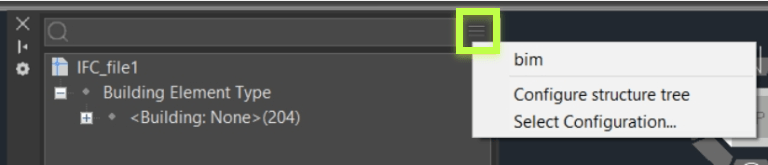
LusoCAD allows you to configure how BIM elements are displayed in the Structure Panel.
Via the option:
you can create custom organisation rules.
For example:
- Group by floor
- Group by subject
- Group by object category
- Sort by BIM properties
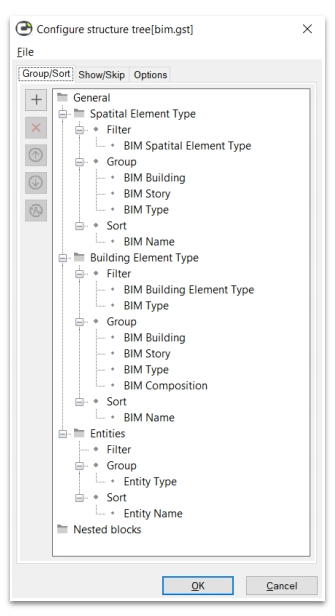
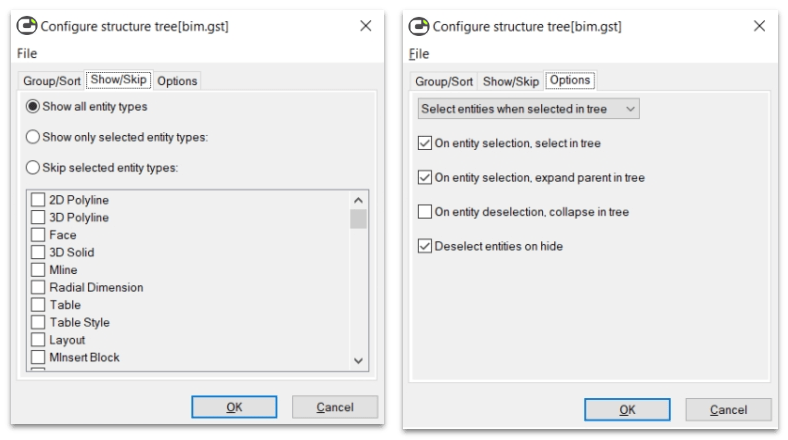
It is also possible to save custom settings via files GST, allowing the same structures to be reused across different projects.
Available Operations
Can you create rules for:
- Filtering
- Grouping
- Sorting
Options include:
Add
Add new rules or properties.
Delete
Remove existing rules.
Move Up
Change the rule priority.
Move Down
Repositions rules in the structure.
Invert conditions
Applicable to filtering properties.
4. Export Models to IFC
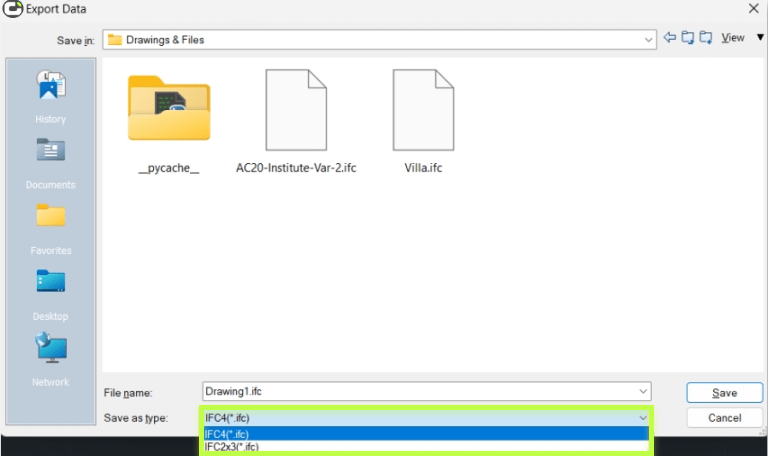
After working on a project, you can export it back to IFC.
Utilise
This functionality allows information to be exchanged with other BIM platforms whilst retaining the data associated with the model.
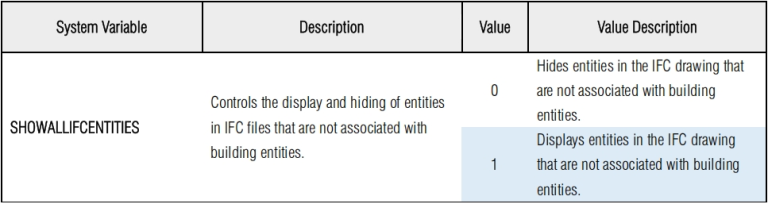
It is particularly useful for:
- Multidisciplinary coordination
- Project delivery
- BIM coordination
- Team collaboration
5. Compatibility with RVT, STEP and IGES
In addition to IFC files, LusoCAD supports other widely used formats.
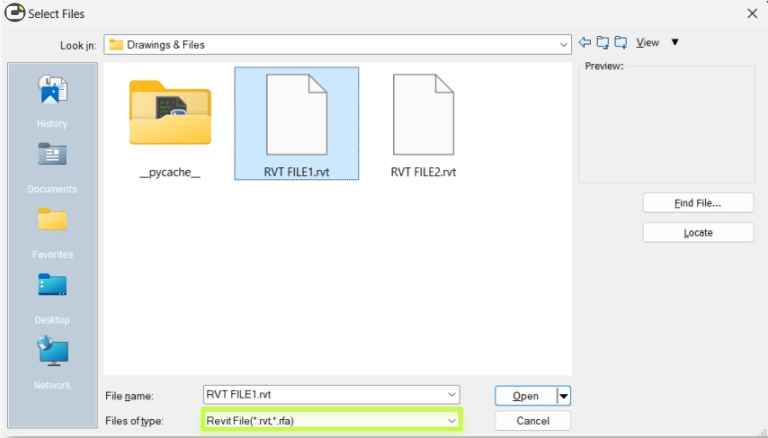
RVT File Import
RVT files are usually associated with specialised BIM applications.
To import:
The model is imported, retaining the respective BIM data wherever possible.
STEP support
The STEP format is an international standard used for exchanging three-dimensional models between different CAD systems.
Common extensions:
- .STEP
- .STP
- .STE
It is widely used in:
- Mechanical engineering
- Product development
- Industrial manufacturing
IGES support
The IGES format is another of the most widely used historical formats for exchanging geometry between CAD and CAM platforms.
Common extensions:
- .IGS
- .IGES
How to Import STEP or IGES
You may use:
or the commands:
- STPIMPORT
- IGSIMPORT
It is also possible to use the import option directly from the file opening menu.
Why is BIM Support Important?
Even for users who work daily in traditional CAD, the ability to open and consult BIM models is becoming increasingly important.
Among the advantages are:
- Better coordination between teams
- Access to rich object information
- Multi-platform compatibility
- Greater efficiency in data exchange
- Reduction of cross-disciplinary communication errors
As projects evolve, interoperability has become an essential requirement for many architecture, engineering and construction companies.
Conclusion
The BIM support of LusoCAD allows you to import, view, organise and export smart models using widely used formats such as IFC, RVT, STEP and IGES. With tools like the Structure Panel, the management of large models becomes simpler, whilst import and export capabilities help to improve collaboration between different teams and platforms.
For companies working increasingly in multidisciplinary environments, these features represent an important step in efficiently integrating CAD and BIM workflows.

 English
  Portuguese
  Spanish