

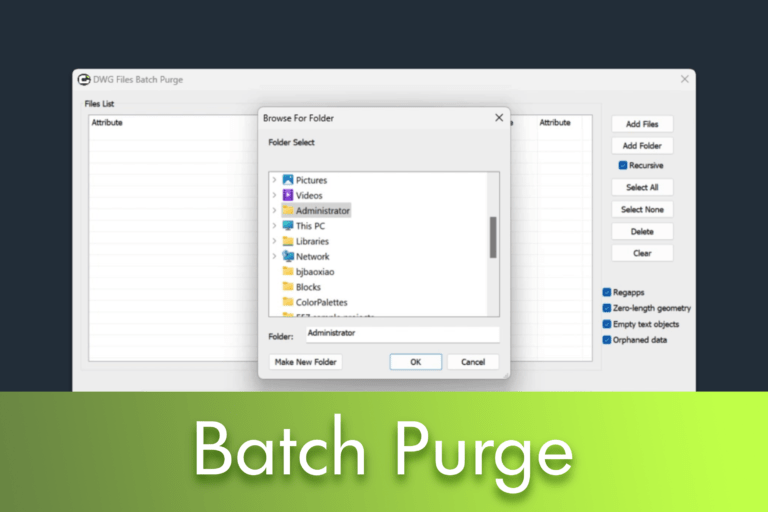
Se trabalhas com vários DWG files, you know how quickly unnecessary data can accumulate – blocks, layers, linetypes, text styles, residual geometry, and much more. Over time, this hidden information increases file sizes, reduces performance, and makes drawings harder to manage.
In this companion article to our video tutorial, we'll show you the improvements to the LusoCAD 2026 and demonstrate how Batch Purge updated can remove even more hidden data, in multiple DWG files at the same time.
What is the Batch Purge?
O Batch Purge is a powerful tool that allows you to remove unused and unnecessary data from several drawings in a single operation. It eliminates:
- Too many blocks
- Unused layers
- Line types
- Text styles
- Dimension styles
All this helps to keep your working directory clean and files considerably lighter.
What's new at LusoCAD 2026?
LusoCAD 2026 significantly expands the capabilities of Batch Purge by adding four new purging options:
- Registered Apps
- Zero-length geometry
- Empty text objects
- Orphan data
These additional options allow you to find even more invisible elements that take up space in the file without any practical use.
Preparation: Four example drawings
For this demonstration, we have prepared four drawings, each with a different type of information to be removed.

Drawing 1: Empty Text Objects
When you press Ctrl + A to select everything, you'll notice several text objects with no content.

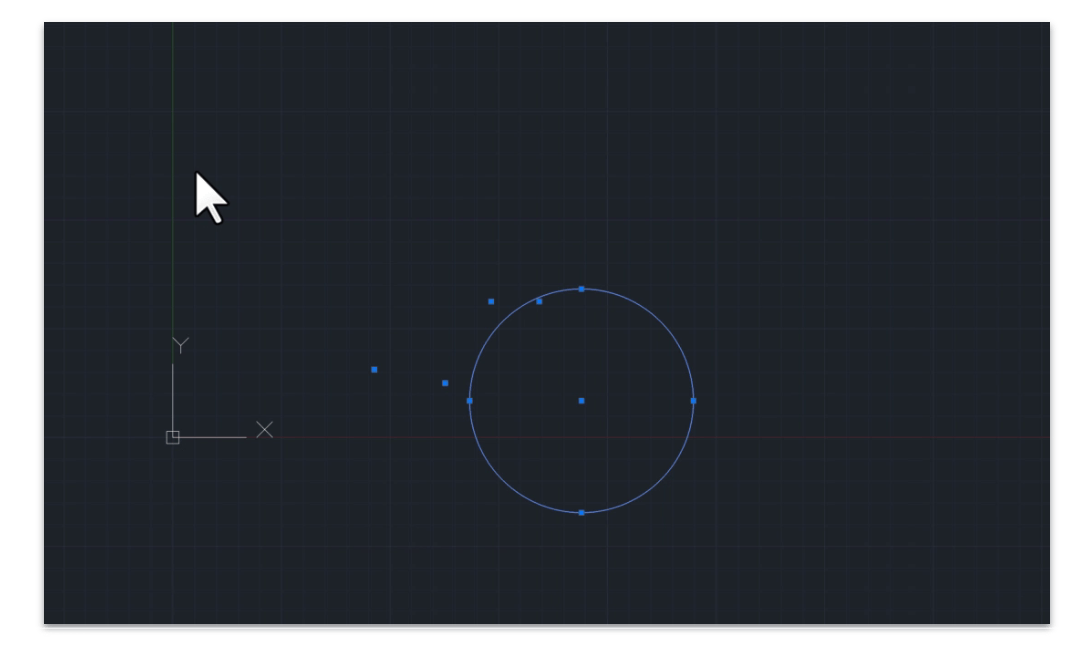
Drawing 2: Zero Length Geometry
Press Ctrl + A again.
Next to the circle, there is geometry so small that it's barely visible - but it's still stored in the file.
Drawings 3 and 4: Registered Applications and Orphan Data
In these two drawings, the data is present but not visible on the screen.
As there are no graphical differences, let's compare the file sizes before and after the purge.
Step by Step: Using Batch Purge in LusoCAD 2026
Now that we've analysed the drawings, let's see how the purging process works.
1. Close all drawings
Batch Purge works best when no file is open.
2. Enter the command BATPURGE
Write BATPURGE in the command line to open the tool's dialogue box.

3. Activate the new purge options
Make sure these four options are selected:
- Registered Apps
- Zero-Length Geometry
- Empty Text Objects
- Orphaned Data
4. Add your files
Choose one of the options:
- Add Files to select drawings individually
- Add Folder to load a complete folder
Load the four example drawings.
5. Start the purge
Click on:
- Select All
- Start Purge
The process is extremely fast.
If you like, you can consult the log to see the details.
Results: Lighter, cleaner designs
After purging, all four designs are noticeably lighter.

Empty text objects removed
When you open the first drawing and load Ctrl + A, no object appears anymore.
Zero-length geometry eliminated
In the second drawing, the almost invisible geometry has completely disappeared.

Hidden data removed
In the last two drawings:
- No orphan data
- No unnecessary registered applications
The reduction in final size confirms the effectiveness of the purge.
Conclusion: A cleaner workflow with LusoCAD 2026
The tool Batch Purge improved in LusoCAD 2026:
- Remove more hidden data types
- Reduce file size
- Facilitate long-term maintenance
- Improve performance in folders with many drawings
Whether you manage just a few drawings or thousands, these improvements will save you time and keep your DWG environment more efficient.

 English
  Portuguese
  Spanish