


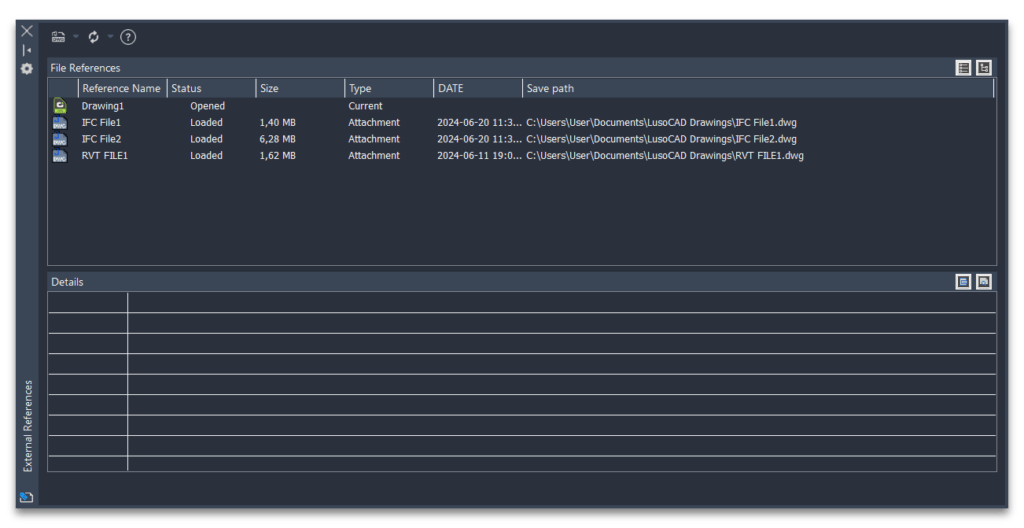
Working with external referencesXrefsis a common practice in CAD projects of any size. However, some users may notice that certain layer settings, such as colours, linetypes, or visibility states, appear to disappear when they reopen the drawing or reload an external reference.
In most cases, this behaviour is related to system variables that control how LusoCAD manages the properties of layers originating from Xrefs. Understanding these settings helps to avoid loss of configurations and ensures a more consistent working experience.
What is the VISRETAIN Variable?
The system variable:
VISRETAIN
controls how the host drawing treats layer properties from external references.
When
VISRETAIN = 1
The changes made to the Xref layers in the current drawing are maintained and saved with the file.
For example, if you change:
- Layer colour
- Line type
- Line thickness
- Printing status
- Visibility
these changes remain available even after closing and reopening the drawing.
This is the recommended configuration for most users.
How to Verify VISRETAIN Value
On the command line, type:
VISRETAIN
and press Enter.
LusoCAD will present the current value.
If necessary, introduce 1
to activate the retention of layer properties.
What is VISRETAINMODE?
The variable
VISRETAINMODE
It works in conjunction with VISRETAIN and allows you to control exactly which properties of Xref layers should be synchronised when the reference is updated.
While VISRETAIN decides whether local changes are kept, VISRETAINMODE determines which properties can be synchronised from the external reference.
Recommended Configuration
For the traditional behaviour expected by most users:
With this configuration:
- The changes made to the current drawing take priority.
- Layer properties are saved between sessions
- Unexpected changes are avoided after reloading an Xref
VISRETAINMODE Variable Values
The variable uses numerical values to control the synchronised properties.
Value 0
No properties are synchronised.
This behaviour is equivalent to the traditional operation of older AutoCAD versions when VISRETAIN was active.
Value 1
Enable synchronisation of properties linked to the layer visibility state.
Valor 2
Synchronise
- Freeze
- Thaw
Valor 4
Synchronise
- Lock
- Unlock
Value 8
Synchronise
- Plot
- No Plot
Value 16
Synchronise
- Cor
Value 32
Synchronise
- Line type
Valor 64
Synchronise
- Line thickness
128
Synchronise
- Transparency
Value 256
Synchronise
- Plot style
Value 512
Synchronise
- Freezing in Viewports
Value 1024
Synchronise
- Layer description
Use Multiple Options Simultaneously
It is possible to combine properties by summing their respective values.
For example:
3
corresponds to:
1 + 2
In other words:
- Visibility
- Freeze/Thaw
will be synchronised automatically.
Why can layer settings disappear?
There are several possible causes.
VISRETAIN Disabled
See VISRETAIN = 0
The properties of the Xref can be redefined whenever the reference is updated.
2. VISRETAINMODE Inadequately Configured
Certain combinations may cause specific properties to resynchronise from the Xref.
Always check the defined values if you observe any unexpected changes.
3. Geometry on Layer 0
A frequently overlooked cause is the use of:
within the external reference itself.
When many elements are drawn on layer 0, managing layer properties becomes less predictable.
Whenever possible, distribute objects across appropriate layers within the Xref.
4. Complex Xref Structures
Problems can arise when there are:
- Xrefs aninhades
- Circular references
- Complex annexation chains
In these cases, it may be useful to simplify the structure of the references.
Check XREFOVERRIDE Variable
Another important variable is: XREFOVERRIDE
Define: XREFOVERRIDE = 1
and reload the external reference.
This configuration helps the host drawing retain local overrides defined for Xref layers.
How to Solve Xref Layer Problems
If you continue to lose settings between sessions, follow this checklist:
Step 1
Check: VISRETAIN = 1
Step 2
Confirm: VISRETAINMODE = 0
Step 3
Define: XREFOVERRIDE = 1
and reload the reference.
Step 4
Check if the xref geometry isn't all drawn in:
Layer 0
Step 5
Analyse the existence of:
- Nested xrefs
- Circular references
Step 6
Run drawing repair tools, such as:
AUDIT or RECOVER
to correct potential file integrity issues.
Tip for CAD Administrators
If the variable values change repeatedly without user intervention, it's worth checking:
- Personalised profiles
- Startup scripts
- LISP routines
- Third-party applications
These customisations can automatically change system variables whenever a drawing is opened.
Conclusion
When working with external references in LusoCAD, the variables VISRETAIN and VISRETAINMODE play a fundamental role in how layer properties are maintained between sessions. In most work environments, the combination VISRETAIN = 1 and VISRETAINMODE = 0 offers the most predictable behaviour and avoids the loss of local changes.
With some simple checks and good management of layers in Xrefs, it is possible to ensure greater consistency in projects and eliminate one of the most common problems associated with collaborative work with external references.

 English
  Portuguese
  Spanish