


What is Drawing Lock and why should it be used?
In some situations, a draughtsman needs to share drawings with other people, while preventing the content from being altered. The Drawing Lock é uma Express Tool útil do LusoCAD which helps protect your work by converting the entire drawing into a single block.
Once locked, the drawing cannot be exploded or edited, which prevents other users from modifying the original objects. In this way, Drawing Lock is an effective solution for safeguarding your project when sharing files.
How to access the Drawing Lock tool
There are two ways to access the Drawing Lock tool in LusoCAD:
From the menu:
Access Express > Drawing > Drawing Lock, as shown in the figure below.

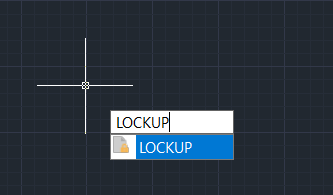
Using a command:
Write LOCKUP on the command line and press Enter, as shown in the figure below.
How to use Drawing Lock
After starting the Drawing Lock command, a dialogue box will be presented.

Next, you will be asked to select objects.

Select all objects in the current drawing that you want to lock, then press Enter to confirm.
Important notice:
Make sure you save the drawing before using Drawing Lock, as the drawing cannot be modified once it is locked.

 English
  Portuguese
  Spanish