

How to keep your personal settings when updating LusoCAD
Update to a new version or build of LusoCAD doesn't mean losing your personalised interface, colours, fonts, or other personal settings. In this step-by-step guide, you will learn:
- How migrate settings from an older version of LusoCAD (for example, 2025 → 2026)
- How export and import your settings when upgrading to a new build of the same version
This way, whenever you update LusoCAD, you can continue to work in exactly the environment you're used to.
1. Why you should migrate your LusoCAD settings
When you install a new major version of LusoCAD (for example, when you move from LusoCAD 2025 for the LusoCAD 2026), the programme is installed with the default settings:
- Standard layout and desktop
- Standard fonts and text styles
- Standard colours and theme
- Standard toolbars and palettes
If you've spent time customising your environment, you probably don't want to start all over again with every update. Fortunately, LusoCAD includes integrated tools that allow you to:
- Migrate settings from a previous version
- Export the current settings for a file
- Import these settings later, for example after updating the build
2. Migrate settings from a previous version of LusoCAD
This method is used when installing a new main version of LusoCAD (for example, 2025 → 2026).
2.1 Before migrating: check your customisations
In your previous version of LusoCAD, you can have it personalised:
- Layout and work area
- Colours and theme (background, grid, interface colours)
- Fonts and text sizes
- Tool palettes, ribbons, shortcut keys, etc.
These are the settings that will migrate to the new version.
2.2 Open the “Migrate from a previous release” tool”
- Close LusoCAD if it is open.
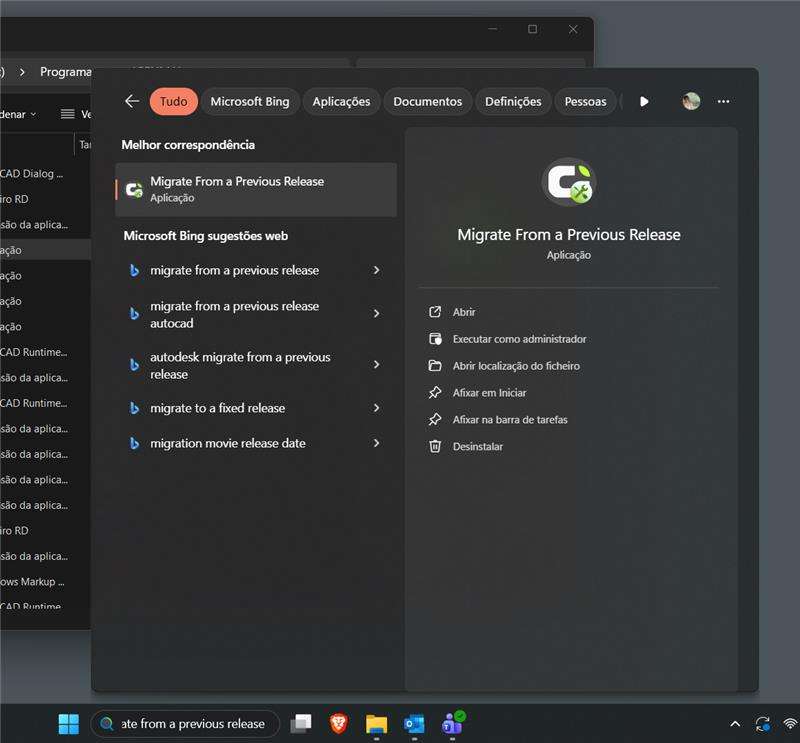
- In Windows, go to Start Menu and open the LusoCAD programme folder.
- Look for a tool with the name:
“Migrate from a previous release”
or, as an alternative, you can find the .exe file in:
C:\Program Files\IGENMAI\LusoCAD2026\cfgmigrate.exe
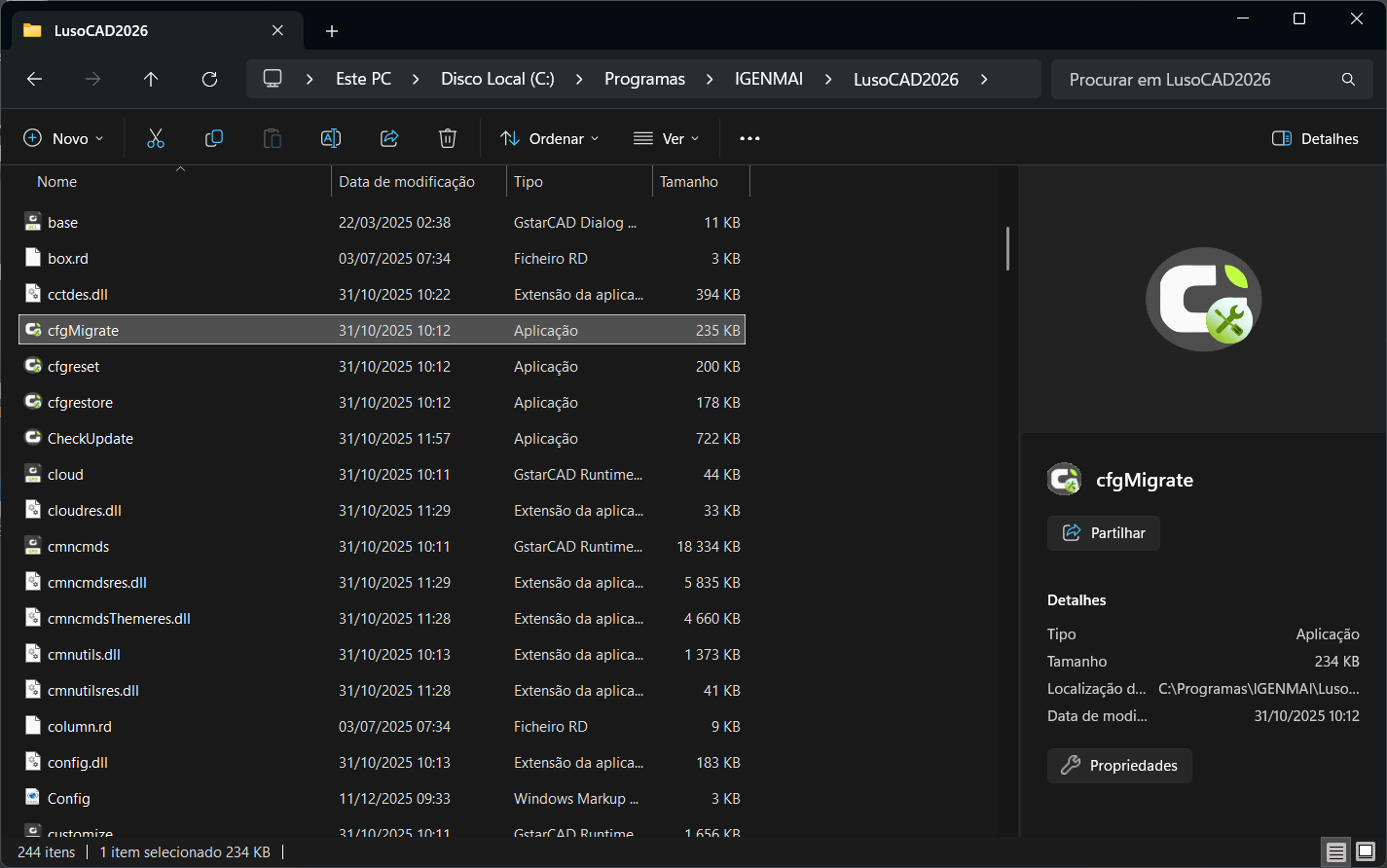
This independent tool was created specifically for copy your settings from an older LusoCAD installation to a newer version.
2.3 Choose the source version and options
Inside the migration tool:
- Select the previous version of LusoCAD as the origin.
- You will see options for exclude certain categories of settings (for example, if you don't want to download a specific setting).
- If you want to transfer everything, Simply choose migrate all settings.
Confirm the migration to start the process.
2.4 Open the new version of LusoCAD
Once the migration is complete:
- Start the new version of LusoCAD (for example, “LusoCAD 2024”, “LusoCAD 2025” or “LusoCAD 2026”).
- When the programme opens, you should now see:
- O same layout of the previous version
- Your custom colours and fonts
- Yours desktop, toolbars and other settings personalised
The environment in the new version should look instantly familiar.
3. Exporting and importing settings when updating a build
You're not always making the 2025 → 2026 transition; sometimes you're just updating the build of the same version (for example, updating LusoCAD 2026 from build X to build Y). In these cases, you can use the Export and Import.
This is especially useful when:
- Install a patch or maintenance build
- Reinstall LusoCAD
- Transfer your configuration to another computer (same main version)
3.1 Check the current build number
Before updating:
- Open LusoCAD.
- Go to the menu Help.
- Click on About.
- In the “About” window, you'll see current build number.
If there's a newer build available on the LusoCAD website, it's a good idea to update - but first export your settings.
4. How to export your LusoCAD settings
Exporting your settings creates a backup file with your personal configuration. You can import this file after the update.
4.1 Closing LusoCAD
For the export tool to work correctly:
- Make sure that the LusoCAD is completely closed.
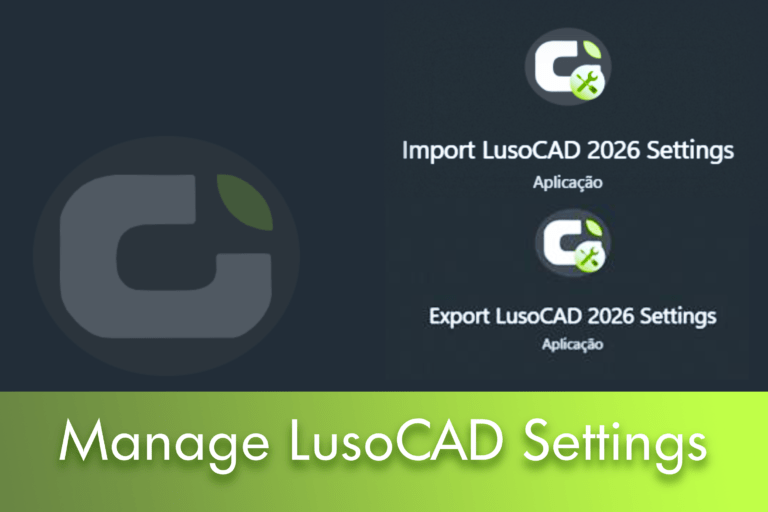
4.2 Run the “Export LusoCAD settings” tool”
- Go to LusoCAD programme folder in the Start Menu.
- Find it and open it:
“Export LusoCAD settings”
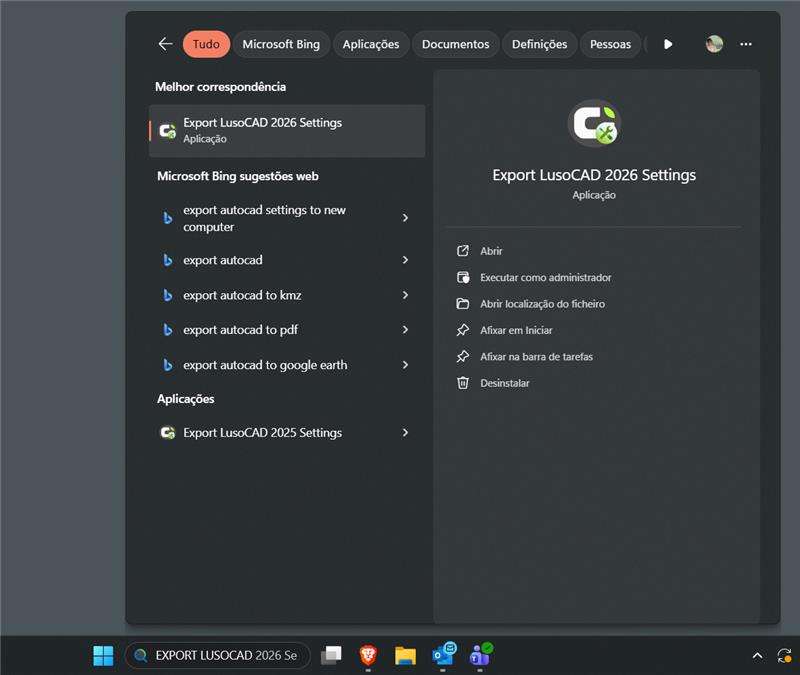
The tool will ask you to choose a file name and a localisation to save the settings.
4.3 Choose the name and location of the file
- Use a clear and descriptive name, for example:
“LusoCAD_2024_Settings_Backup_build1234.lcs” (sample name)
- Save the file in a safe and easily accessible place (e.g. Documents, Cloud or a backup folder).
After confirming, the programme creates your settings backup file.
5. Update your LusoCAD build
Now that you have your settings safe:
- Go to LusoCAD official website.
- Download latest build for the version of LusoCAD you have installed (for example, the most recent builds of LusoCAD 2025 or LusoCAD 2026).
- Run the installer and follow the steps until the update is complete.
If you have any problems during installation, you can watch the video dedicated to the installation process on the YouTube channel of Structural Academy, where the procedure is explained in detail.
Once the installation is complete, you're ready to import the settings you've saved.
6. How to import your LusoCAD settings
Importing allows you to bring the settings you exported earlier into the new build.
6.1 Run the “Import LusoCAD settings” tool”
- Once again, make sure that the LusoCAD is closed.
- In your LusoCAD programme folder, open:
“Import LusoCAD settings”
The tool will ask you to select the settings file that you previously exported.
6.2 Select the exported settings file
Navigate to the folder where you saved the file (for example: “LusoCAD_2024_Settings_Backup_build1234.lcs”).
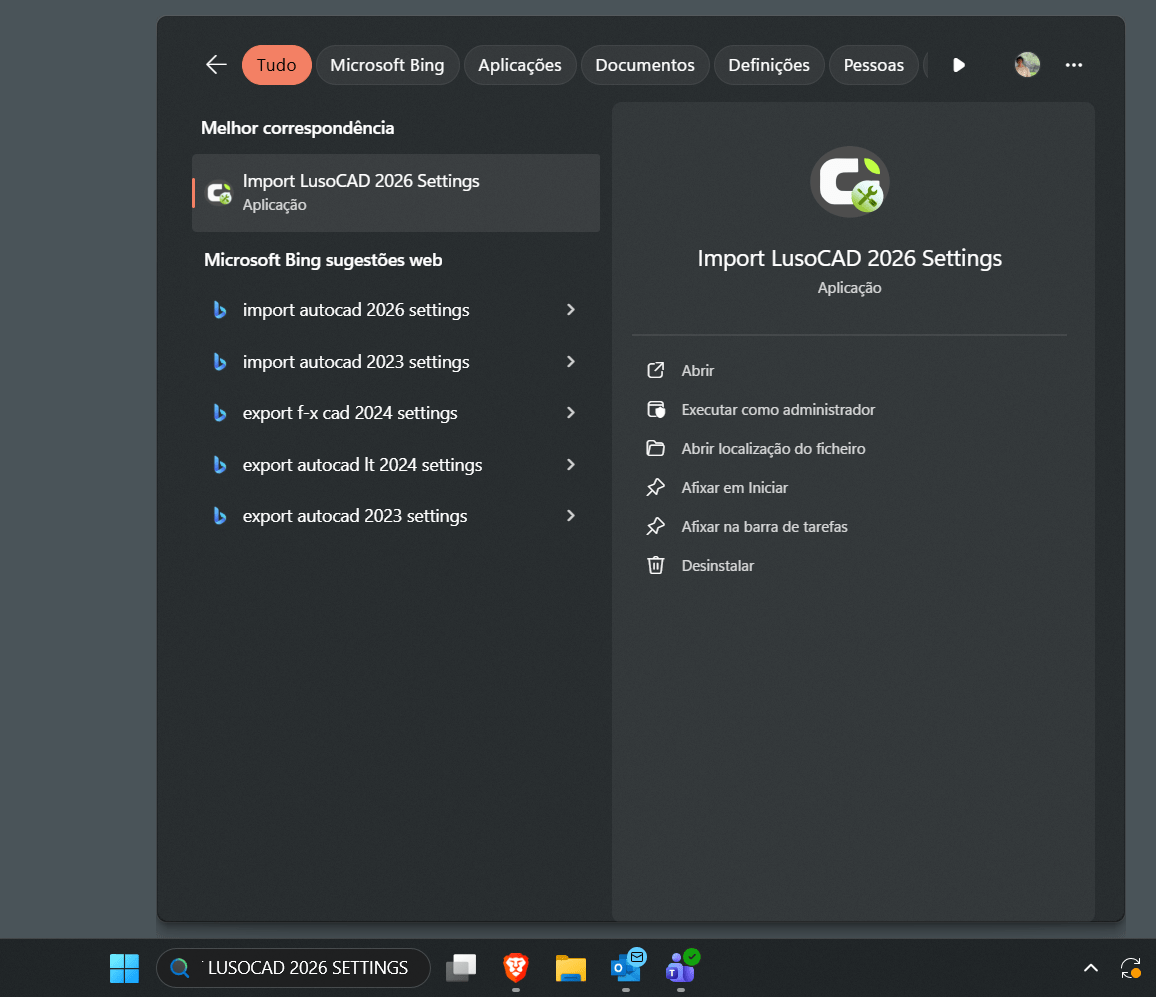
Select the file and confirm.
The tool will now import your personal settings into the updated build.
6.3 Open LusoCAD and check
- Start LusoCAD after the import process has finished.
- Check that:
- Your layout is the same as before
- Your colours and fonts were maintained
- Other settings and personal preferences remain active
If everything is as it was before, the update and import were successful: you now have the latest build with your original working environment intact.

 English
  Portuguese
  Spanish