


What is Lasso Selection in LusoCAD?
A Selection by Lasso allows you to define a selection area irregular and freely with the mouse, instead of being limited to rectangular windows.
With this tool, you can create:
- A Window Lasso (selects objects only completely inside the shape)
- A Crossing Lasso (selects objects within and across the shape)
- A Lasso in Fence mode (selects objects that the fence line crosses)
This is especially useful in dense areas of the drawing, where a rectangular window would catch too many unwanted objects.
How to use Lasso Selection

Start the selection
- Place the cursor in the drawing area.
- Press and press and hold the left mouse button.
Free-form drawing
- While keeping the button pressed, drag the mouse to draw the lasso around the objects you want to select.
- You can curve and bend the line freely to follow the shape of the geometry.
Completing the lasso
- Let go of the mouse button.
- When you let go, LusoCAD completes the lasso and selects the objects according to the current lasso mode (window, intersection or fence).
How to deactivate Lasso Selection in LusoCAD
If you prefer to use only traditional rectangular selection windows, you can deactivate lasso selection:
- Open the dialogue box Options.
- Go to the Selection (or Selection Set).
- Locate the option “Allow press and drag for Lasso”.
- Switch off (remove check) in this option to switch off Lasso selection.
- Click on OK or Apply to confirm.
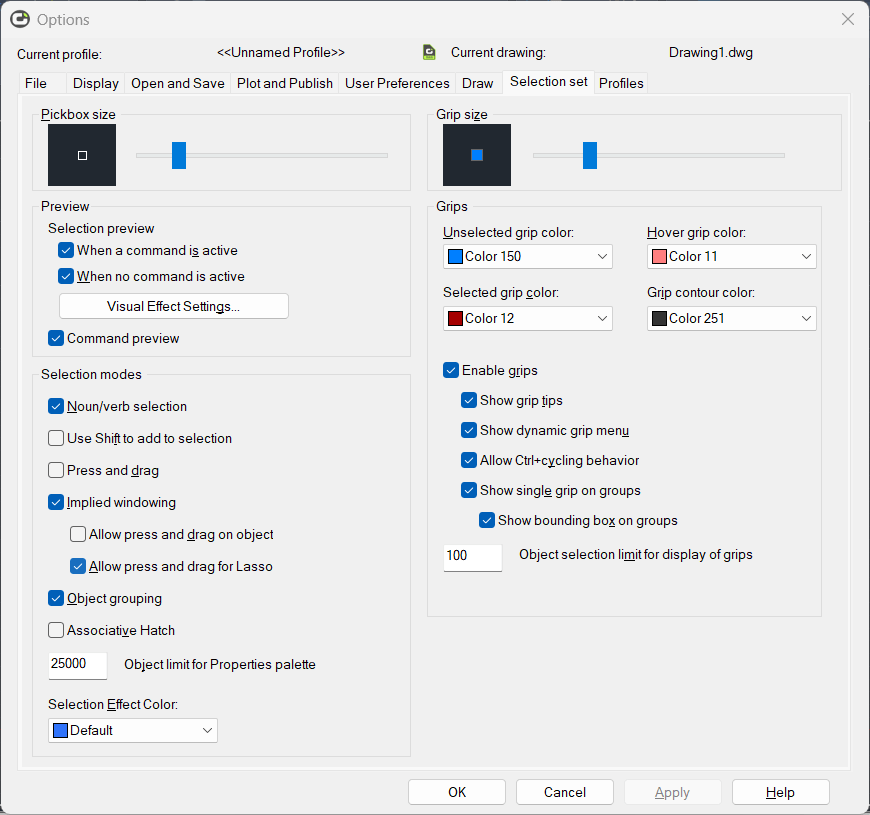
After that, pressing and dragging with the mouse will no longer create a lasso; it will just have the standard selection behaviour.
How to switch between Lasso Selection modes
LusoCAD offers three lasso modes:
- Window Lasso
- Crossing Lasso
- Lasso in fence mode
While you are creating a lasso, you can press the Spacebar to switch between these modes. Each press of the space bar switches to the next mode.
Lasso selection modes in detail
1. Window Lasso
- How to use:
- Press and hold down the left mouse button.
- Drag from left to right to draw the lasso.
- Effect:
- Only objects are selected completely involved by the shape of the lasso.
- Any object that is only partially inside the area no is selected.
Use this mode when you want very strict control and want to avoid selecting objects that only lightly touch the selection area.
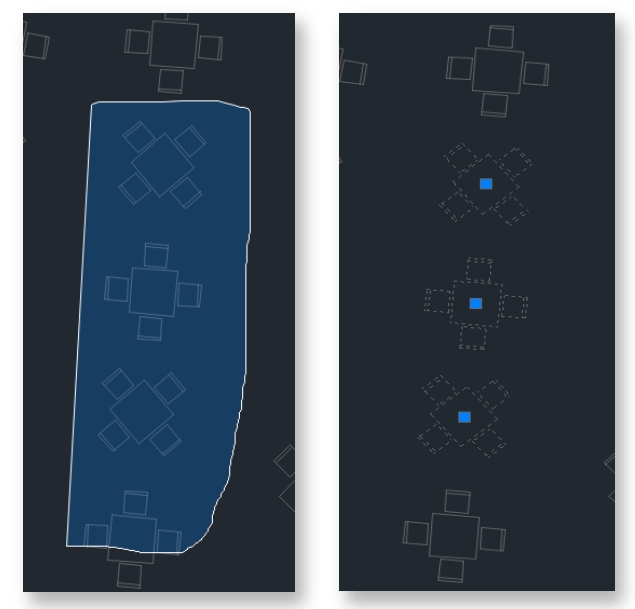
2. Crossing Lasso
- How to use:
- Press and hold down the left mouse button.
- Drag from right to left to draw the lasso.
- Effect:
- Objects that are inside lasso or crossed by its limit.
- This usually results in more objects being selected than with the window lasso.
Use this mode when you want to quickly select a set of elements, even if they are only partially within the area.

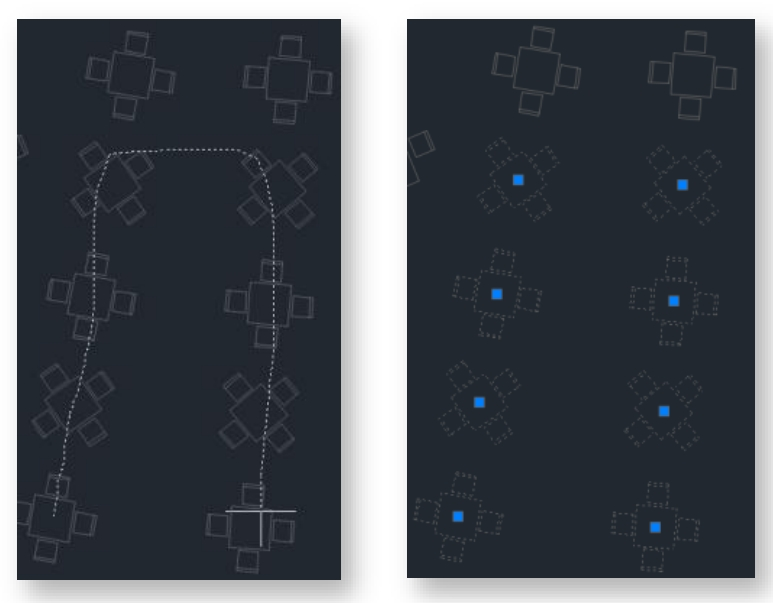
3. Lasso in Fence mode
- How to use:
- Whilst in lasso mode, press the Spacebar until you reach Fence.
- Click to specify several points that define a line of fence.
- Effect:
- Any object that the fence line cross is selected.
- It's not necessary to completely enclose the objects; it's enough for the fence to intersect them.
This mode is ideal for selecting objects along a route, such as lines along a corridor, grids or elements aligned in one direction.
Summary
- A Selection by Lasso at LusoCAD allows you to create free-form selection areas for more flexible and precise selection.
- Press and hold the mouse button and drag to draw the lasso; release to finish.
- You can deactivate the lasso in Options → Selection (Selection Set) → “Allow press and drag for Lasso”.
- Use the Spacebar to switch between modes Window, Crossing and Fence.
- Direction is important:
- Left → Right: Window Lasso (only fully included objects)
- Right → Left: Crossing Lasso (objects inside or crossed)
- Fence: selects objects crossed by the fence line

 English
  Portuguese
  Spanish