

Reset Settings to Default in the software: this tool is useful when you cannot make certain elements appear or disappear from interface, or when a layout change compromises your workflow; allowing you to immediately restore the program's default settings or, if you prefer, back up your settings before proceeding with the reset.
How to reset LusoCAD settings to default values
LusoCAD introduces a one-click option to restore the programme settings to their default state - a quick way to fix configuration problems or start again.
Where to find us
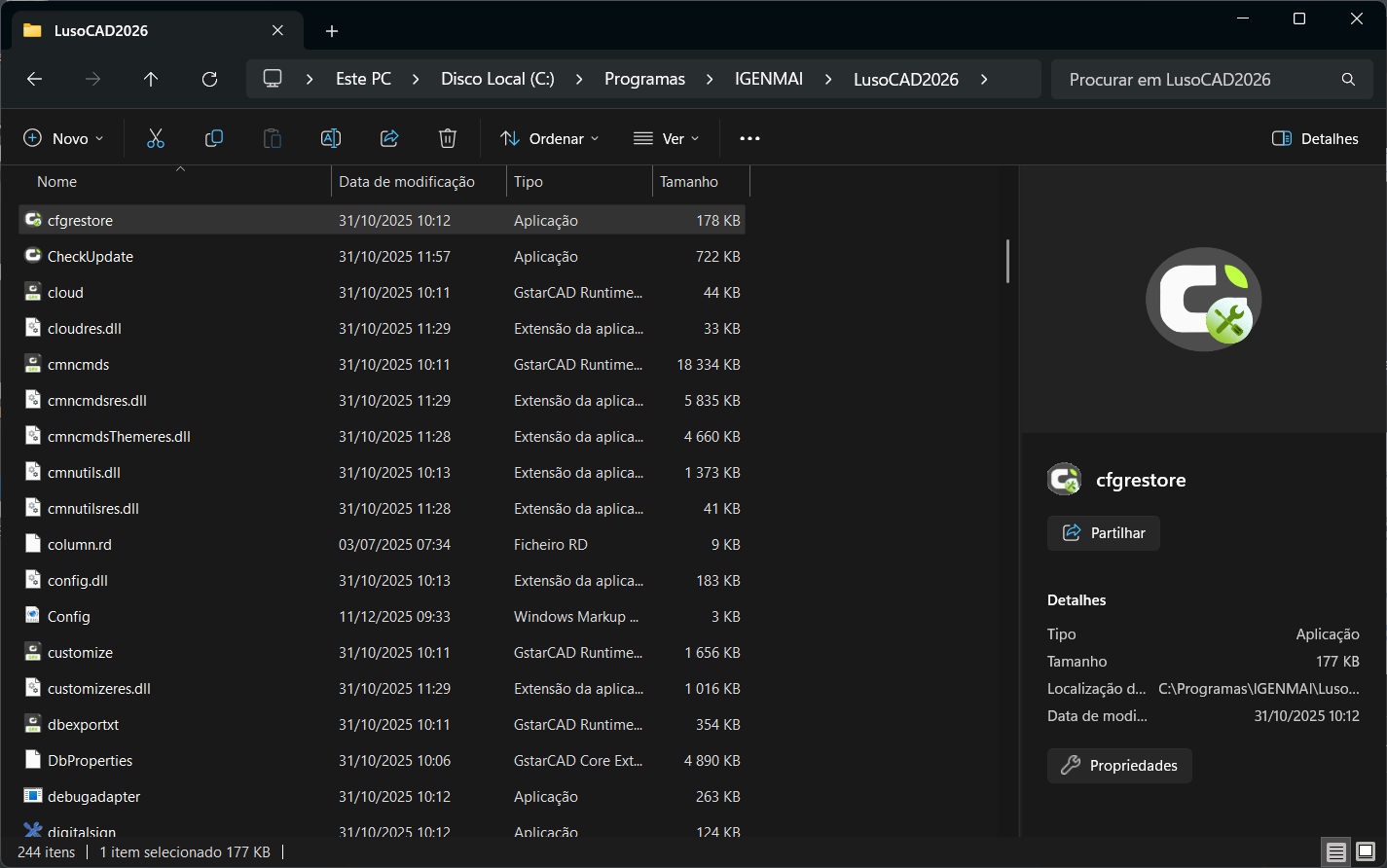
Open the Start Menu in Windows and in the search bar, write "Reset Settings to Default"
or, as an alternative, you can find the .exe file in:
C:\Program Files\IGENMAI\LusoCAD2026\cfgreset.exe

Before replacing
Close LusoCAD before performing the reset. If the programme is open, you will see a warning asking you to close it first.
Replacement options explained
When you run Reset Settings to Default you will be presented with two options:
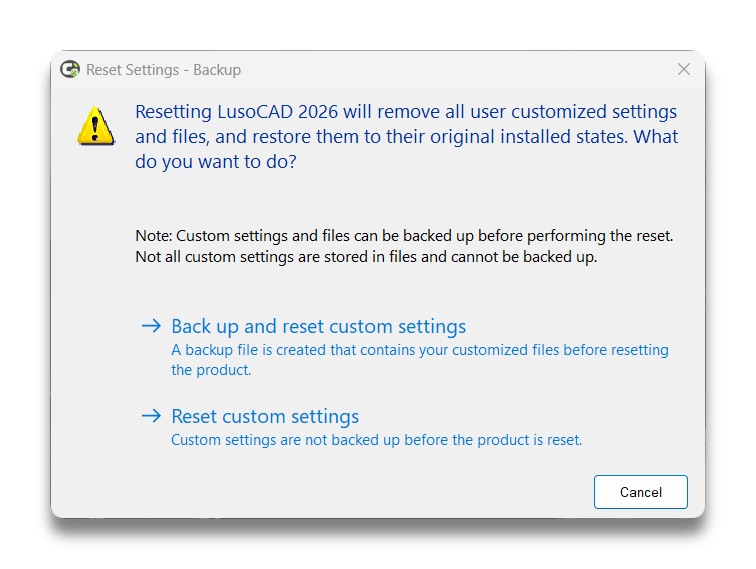
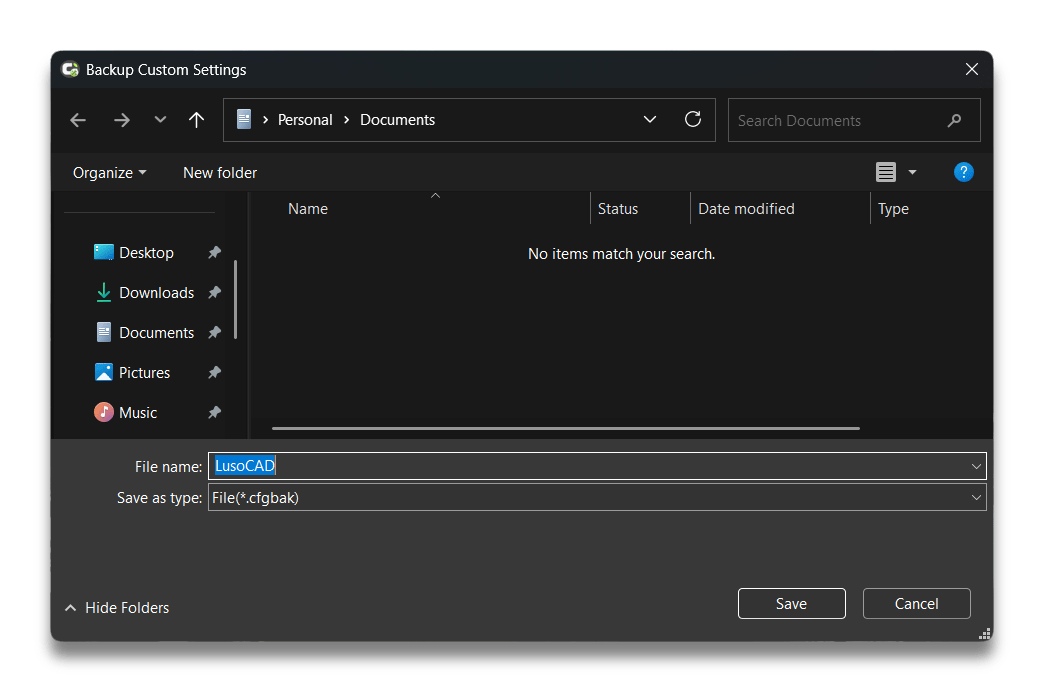
- Back up and reset custom settings
- Deletes entries from the LusoCAD registry.
- Create a backup and copy the Local and Roaming folders from the following path:
“C:\Users\username\AppData”
- After the backup, delete the original Local and Roaming folders.
- When you restart LusoCAD, new Local and Roaming folders will be generated automatically.
- Reset custom settings
- Deletes entries from the LusoCAD registry.
- Delete the Local and Roaming folders (without backup).
- When you restart, LusoCAD will create new Local and Roaming folders.
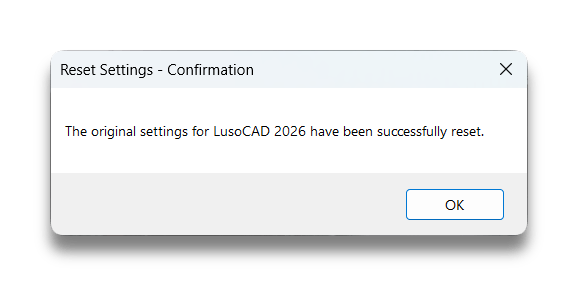
Resetting LusoCAD settings to their default values is a practical and safe solution for resolving interface problems and restoring a functional working environment. If you have any doubts or want to recover your preferences, use the backup option before resetting.

 English
  Portuguese
  Spanish