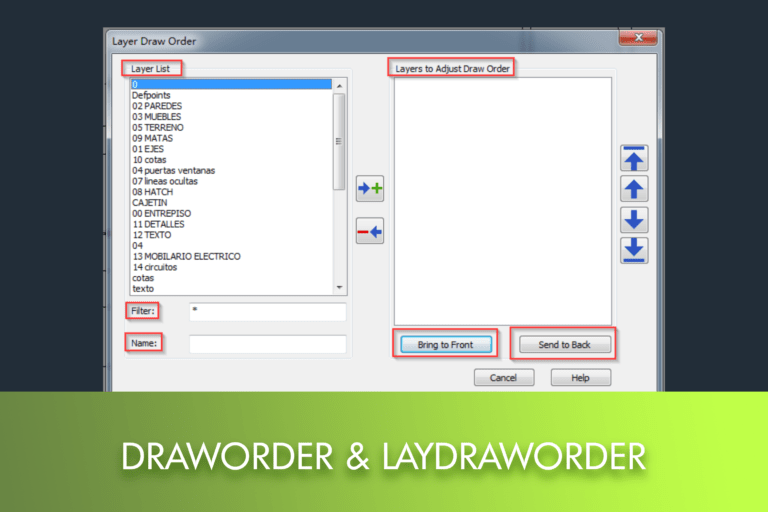
How to Easily Reorder Your Layers in LusoCAD

In LusoCAD, the organisation of the display order is fundamental to ensure clarity and correct interpretation of drawings. With tools like LAYDRAWORDER and DRAWORDER, it is possible to control both the hierarchy of layers and individual objects simply and effectively.

In any CAD workflow, good layer management It is essential for keeping drawings organised and visually clear. Layers allow for the separation of different elements of a project, and controlling their display order ensures that the most important objects remain visible while others are kept in the background. LusoCAD provides tools to easily adjust the layer order, as well as commands to precisely control the order of individual objects, enabling improved readability and presentation of drawings.


How to Easily Reorder Your Layers in LusoCAD

The command ORDER is used to organise the layers of a drawing according to the intended order.


How to Access LAYDRAWORDER

On using the 2D Drafting workspace, go to:
Express > Modify > Layer Draworder

On using the LusoCAD Classic workspace, go to:
Express > Modify > Layer Draworder
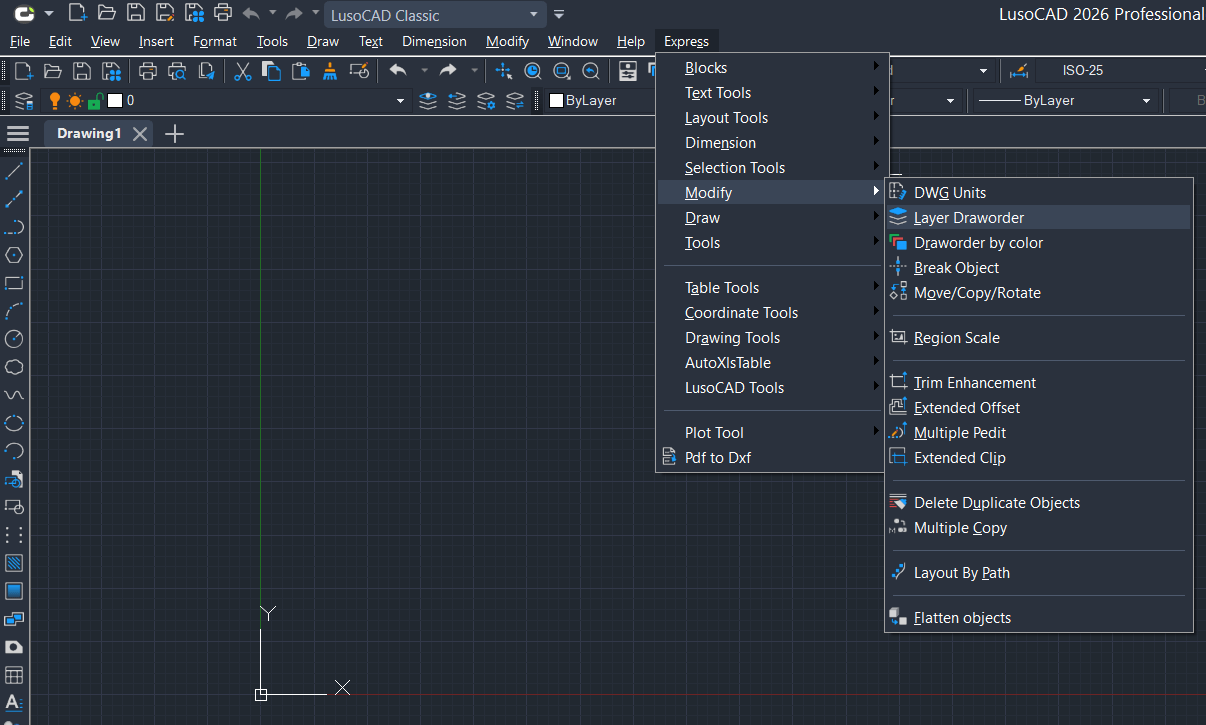
ORDER

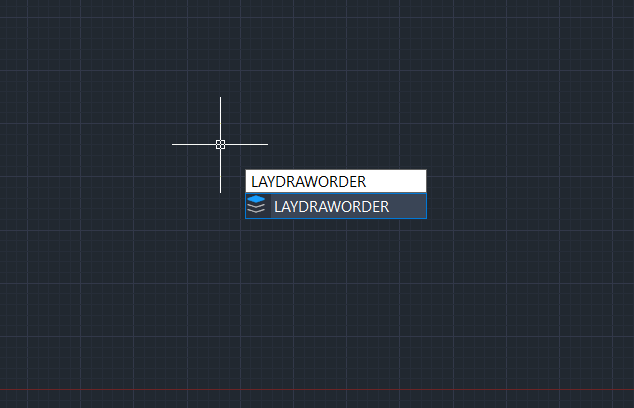
Alternatively, you can write:

ORDER

at the command line and press Enter.

“Layer Draw Order” Window Analysis”

After executing the command, the dialogue box will be presented Layer Draw Order.
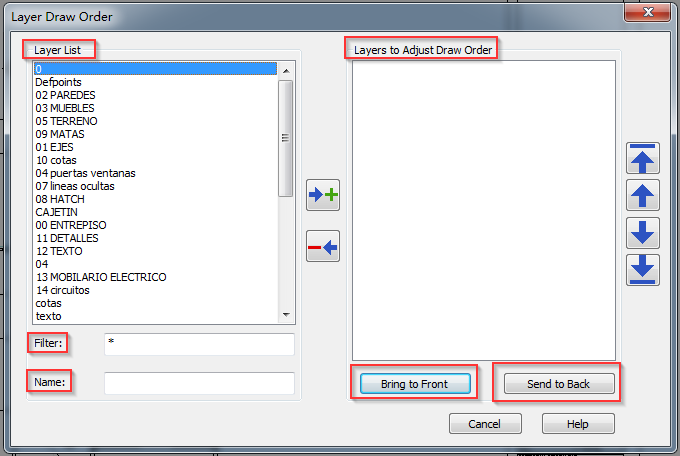
Layer List

The panel on the left displays all existing layers in the drawing.

You can select one or more layers and move them to the right-hand panel.Layers to Adjust Draw Orderby clicking the right arrow.


Layers to Adjust Draw Order

This panel contains the layers whose order you want to change.

To remove layers from this list, select them and click the left arrow.


Filter

In drawings with many layers, it can be difficult to locate the ones you want to alter. The tool Filter Help to simplify this task.

Simply enter a pattern with “wildcards” in the box Filter I preview Enter to view only the corresponding layers.


Name

If you know the exact name of the layer, you can enter it directly and press Enter.

The layer will be automatically added to the list Layers to Adjust Draw Order, ready to be reorganised.


Drawing Order Options

  • Bring to FrontMove selected layers to the front of all others
  • Send to BackMove selected layers behind all others

What is the difference between LAYDRAWORDER and DRAWORDER?

The command ORDER controls the display order of complete layers, while the DRAWORDER it is used to adjust the order of individual objects within the drawing.


DRAWORDER Command

The command DRAWORDER Allows you to change the display order of images or other objects in the drawing.


How to Access the DRAWORDER Command

  • On using the LusoCAD Classic workspace, go to:
    Tools > Draw Order > Bring to Front
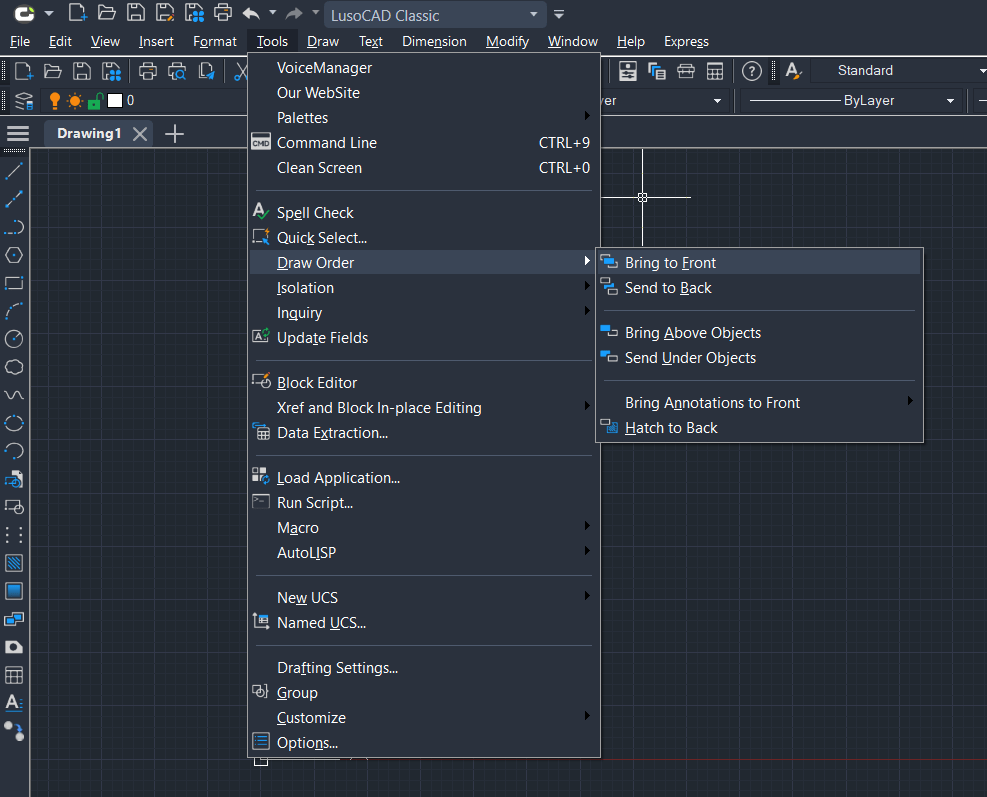
  • Or simply write:
DRAWORDER

on the command line and press Enter.


How to Use the DRAWORDER Command

After executing the command, you will be prompted to select the objects.

  1. Select the intended objects and press Enter
  2. Next, select the sorting option on the command line

System Variable DRAWORDERCTL

The system variable DRAWORDERCTL Controls how overlapping objects are presented by default.

LusoCAD also includes useful commands such as:

  • FRONTPlace all text and annotations in front of the remaining objects
  • Hatch to BackPlace all the objects of Hatch behind the remaining objects

Drawing Order Options
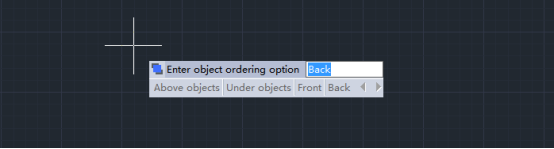
  • Above Objects
    Move selected objects to the top of specified reference objects
  • Under Objects
    Move the selected objects below specified reference objects
  • Front
    Bring selected objects to the top of all objects in the drawing
  • Back
    Move selected objects to the back of all objects in the drawing

Important Note

When changing the drawing order of multiple objects, both the viewing order and the printing order are affected. However, the The relative order between the selected objects remains unchanged.


Summary

While the ORDER is ideal for organising complete layers, the DRAWORDER offers precise control over individual objects. The combined use of these two commands in LusoCAD allows for the creation of clean, well-structured drawings with complete control over visual hierarchy and presentation.

en_GBEnglish

LusoCAD TRIAL Version

Spanish version:

English version:

LusoCAD More Info

LusoCAD TRIAL Version

LusoCAD

Below you will find a comparative table of the main functionalities available in LusoCAD 2027 and AutoCAD® 2027.

LusoCAD vs AutoCAD®

LusoCAD 2027

AutoCAD®2027

StdProPremiumLTFull
64-bit Support
.dwg for AutoCAD version R14 to latest
.pat,.shx,.lin and etc
Password Protection
File Recover and Audit
Purge
Etransmit
Sheet Set Manager
CAD Standard .dwsX
DWF Underlay
PDF Underlay
DGN Import and Underlay
DWG Convert
Import to WMF, SAT, 3DSPartiallyPartially
Export to DWG, DWF, DWFX, WMF, SAT, STL, EPS, DXX, BMP, EMFPartiallyPartially
Plot and Publish to PDF
Publish to DWF 2D & 3D
IFC Import/Export and EditXXX
RVT Import and EditXXX
Single-document Mode
Digital Signature
Batch Digital Signing Tool
Reset Settings to Default.
Mark UpXXX
STEP/IGES FilesXX
DWGUNITS
Drawing MergeXX
Connected Support FilesXXXX
Activity InsightsXXXX
Connected ReferencesXXX

LusoCAD 2027

AutoCAD®2027

StdProPremiumLTFull
3D Modelling Workspace
Quick Properties
Block Palette XXX
Dark Theme
Hidden Message Settings
WorkSpace command
CUI Menus and Toolbars X
CUI Import & Export
Drag and Drop Customisation XX
Visual Menu Customisation
Ribbon/Classic
Properties Palettes
Design Centre/Tool Palette/Xref Palette
Command Line
Clean Screen
Dynamic Input and Auto Complete
Clickable Command Line Options XXX
File Tab
Floating Windows XXX

LusoCAD 2027

AutoCAD®2027

StdProPremiumLTFull
Navigation CubeX
3D Mouse Device Adaption
Lasso Selection
SELECTIONCYCLING
Right-Click + Drag Method
Selection Preview
Selection Effect Customisation XXX
Quick Select
Select Similar
Multifunctional Grips
OSnap
Grid and Snap
Polar & OTrack
Group
Distance from Endpoint and Divide Segments XX
ADDSELECTED Command
Multiple command

LusoCAD 2027

AutoCAD®2027

StdProPremiumLTFull
Quick Measure by Hovering Rapid Distance Rapid Distance Rapid Distance
DIMCENTER Command PartiallyPartially
Reassociate Dimension
DIMTOFFSET XX
Standard Dimensions
Associative Dimension
Dimension Break
Quick Dimension
Qleader
Dynamic Dimensions
Multileaders
Voice Annotation XX

LusoCAD 2027

AutoCAD®2027

StdProPremiumLTFull
Auto ConstraintXXXX
Coincident ConstraintXX
Perpendicular ConstraintXX
Parallel ConstraintXX
Tangent ConstraintXX
Horizontal ConstraintXX
Vertical ConstraintXX
Collinear ConstraintXX
Concentric ConstraintXX
Smooth ConstraintXXX
Symmetric ConstraintXX
Equal ConstraintXX
Fix ConstraintXX
Constraint SettingsXX
Delete ConstraintsXX
Show/Hide ConstraintXX

LusoCAD 2027

AutoCAD®2027

StdProPremiumLTFull
Linear ConstraintXXX
Horizontal ConstraintXXX
Vertical ConstraintXXX
Aligned ConstraintXXX
Angular ConstraintXXX
Radius ConstraintXXX
Diameter ConstraintXXX
Constraint SettingsXXX
Delete ConstraintsXXX
Show/Hide ConstraintXXX
Parameters ManagerXXX
Dynamic Constraint ModeXXX
Annotational Constraint ModeXXX

LusoCAD 2027

AutoCAD®2027

StdProPremiumLTFull
Mtext
Text
Multi-language Character Set
In-place Text Editor
Mtext Superscript and Subscripts
Support .shx and .ttf font
Spelling
Fields
Text Align / Text Match Text AlignText Align
Change Text X X
Mtext Editor
Text Incremental Copy X X
Text on lineX X
Statistics SummationX X
Check spelling in Mtext
Revcloud
Wipeout X X
Automatic Text Numbering

LusoCAD 2027

AutoCAD®2027

StdProPremiumLTFull
Auto Layer XX
Change to ByLayer (SETBYLAYER)
Layer Properties Manager
Layer States Manager
Layer Translator X
Layer Walk
Layer Previous
Layer Isolate
Layer Unisolate
Layer Lock
Layer Unlock
Layer Unlock All XX
Lock Other Layers XX
Layer Freeze
Freeze Other Layer XX
Thaw All Layers
Layer Off
Off Other Layer XX
Turn All Layers On
Layer Merge
Layer Delete
Layer Match
Viewport Layer

LusoCAD 2027

AutoCAD®2027

StdProPremiumLTFull
Hatch objects from Tool Palettes
Gradient Hatches
Custom Patterns
Background and Colour for Hatch Patterns
Trim/Extend of/to Hatch Pattern Entities
Superhatch X
Transparency for Hatch
Trim/Extend/Hatch preview

LusoCAD 2027

AutoCAD®2027

StdProPremiumLTFull
Raster Image Support (Clipping, Transparency, ...)
Support Kinds of Image Files (bmp, jpg, png, tga, tif, gif, pcx, ...)

LusoCAD 2027

AutoCAD®2027

StdProPremiumLTFull
Lockup Command X X
Layout Merge
Synchronise Viewports
Breakpoint Check (CLOSELINE)XX
Fast Select (FASTSEL)
Change Base XX
Layer Draw Order XX
Stat, Blocks Number Count CommandCount Command
Area TableXX
Break Object XX
Block Break XX
Graphic Compare XX
Batch Purge XX
Layout by Path Array pathArray path
Line2pl XX
SptplXX
LusoCAD Tools XX
Plot tools XX
Drawing Compare DWG CompareDWG Compare
Delete Duplicate Objects (OVERKILL)
Drawing Lock XX
Block Replace

LusoCAD 2027

AutoCAD®2027

StdProPremiumLTFull
Hardware Acceleration X X
Break at Point
Region X
Areasum XX
Draw and Modify Commands
Outline Objects XX
Align Tool / Arrange Tool XX
Real Time Pan & Zoom
SteeringWheels XXX
Magnifier XXX
Redraw and Regeneration
Layout and Paper Space
Non-rectangular viewports
Layout Viewport settings
Multilines and Multiline Styles X
Block create and insert
Redefine Block
Refedit
Dynamic Block - Create/Insert/View Partially
Block Attribute Definition
Barcode & QRcode XX
Dynamic Block Editor (BEDIT) Partially
Table ToolsXX
Table
AutoXLSTableXX
Make Shape
Import Layout as Sheet
Viewport Scale
Attribute Increment XX
Define Layout Viewport from ModelSpace (M2LVPORT) XX
Security X
Free Scale XX
Hatch to Back
Reverse
Synchronise Attributes
Clip
Array Options
Symmetric Draw XX
Smart centrelines/center marks XXX
Invert Fillet XX
Offset Multiple
Helix
Cloud Storage
Design share XX
Shortcut Customisation (CUSTACC) XX
Match Properties Across Drawings
Hyperlink
Digitizer Integration
Scale List
Pline Boolean XX
Xref path repair XXX
Undo/Redo Preview
VPMAX/VPMIN
Table
Barcode & QR Code XX
Non-rectangular viewports
Block Attribute Definition
Dynamic Block Create/ Insert/View/Edit Partially
Smart Blocks XXXX
Geometry TinkeringXXX
AI AssistantXXX
Forma Data Management EssentialsXXXX
CheckoutXXXX

LusoCAD 2027

AutoCAD®2027

StdProPremiumLTFull
POLYSOLID XX
PLANESURF XX
SURFOFFSET XX
CONVTOMESH XX
CONVTOSOLID XX
CONVTOSURFACE XX
CONVTONURBS XX
Point Cloud X
3D Edition Grips XX
Section Plane XX
Flatshot XX
Solid editing XX
3D Surfaces X
ACIS Modelling & Editing XX
Camera XXXX
3D Orbit options X
Render XX
Visual Styles ManagerXX
Solprof / Solview / Soldraw XX

LusoCAD 2027

AutoCAD®2027

StdProPremiumLTFull
CTB & STB Plot Style Files
Built-in Print Driver
Import & Editing of Page Setups
Publish
Hide and Shade Plot
Batch Print XX
Arrange Frame XX
Plot Styles Table Editor
3D Print Studio XXXX
AUTOPUBLISH

LusoCAD 2027

AutoCAD®2027

StdProPremiumLTFull
Load Python
LISP Debugger X
LISP vl-, vlr-, vla- and vlax X
LISP Encryption
(SDS/ADS) X
DCL / DCL engine / COM API X
Visual Basic for Applications X
VBA VBI projects support XDVB
.Net Framework X
GRX (LusoCAD Runtime eXtension) XARX
CUI Menu Support/Diesel Expressions
Diesel Expressions
MNU and MNS File Support
API (Toolbar & Menu Customisation) X
Entity Data EditorX
Action Recording and Action MacrosXXXX

LusoCAD 2027

AutoCAD®2027

StdProPremiumLTFull
Subscription
Perpetual Licence XX
Stand-alone USB dongle XX
Network USB dongle XX
Stand-alone Licence
Network Licence XX