

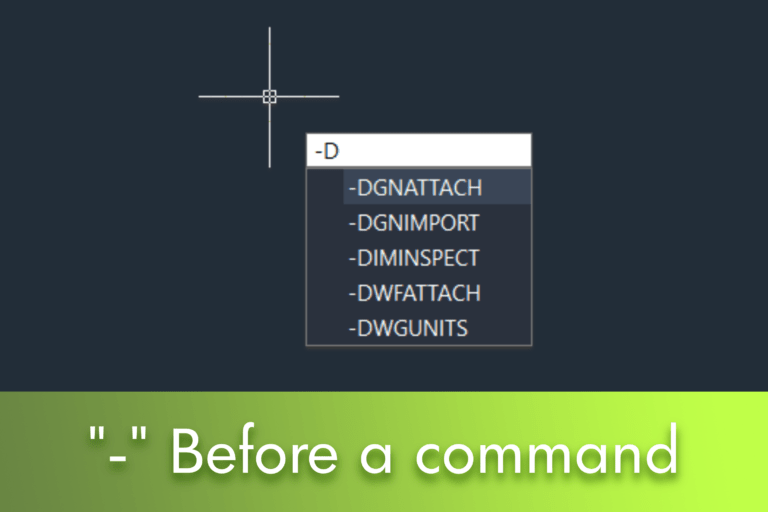

When working with LusoCAD, understanding how commands function can significantly enhance your productivity and efficiency. One important concept is the difference between using graphical dialogue boxes and the command line. LusoCAD provides both methods for interacting with commands, offering flexibility depending on whether you prefer a visual interface or a faster approach via the command line. A simple yet powerful feature related to this is the use of a dash or hyphen (“-”) before a command name, which alters how it is executed.
The hyphen “-”.
Sometimes, we might see a hyphen before a command name. This then raises the question: what is the difference between using a command with and without the hyphen?
In LusoCAD, the system offers two modes for presenting instructions and options:
- Dialog boxes (graphical interface)
- Command-line interface
By adding a hyphen (“-”) before a command, LusoCAD is forced to execute the command-line version, that is to say, without opening any dialogue boxes. Instead, all options and instructions are presented directly in the command line.
Example 1: Dimension Style
To open the dimension style manager using the standard method:
- Write “D” or “DIMSTYLE”, then cousin Enter
This will bring up the “Dimension Style Manager” dialogue box, which allows you to create, modify or compare dimension styles. The dialogue box is useful because it visually organises a large number of options and parameters. However, given the number of settings available, it would not be practical to display them all in the command line.


If, instead, you write:
-DIMSTYLE
I preview Enter, LusoCAD executes the command-line version.

In this case:
- All options are presented on the command line
- The options available are different from those in the dialogue box
- The interaction is done step-by-step, entering values via the keyboard instead of navigating menus.
Example 2: Xref Commands
For some operations, especially repetitive or batch tasks, the command line can be more efficient. This is particularly useful when working with external references (Xrefs).
Reload all Xrefs
To reload Xref files via the command line:
- Write
-XREF
and before Enter
- Next, write:
R (Recarregar)and before Enter
- You will be asked to indicate which Xrefs to reload
- You can select individual Xrefs
- Or recharge all Xrefs at once
Bind all Xrefs
To link Xref files:
- Introduce:
-XREFand before Enter
- Write
B (Bind)
and before Enter
- Indicate the names of the Xrefs to link
- Or link all Xrefs simultaneously

Summary
Using a hyphen before a command in LusoCAD is a simple yet powerful way to switch between a graphical interface and a command-line approach. While dialog boxes are ideal for exploring complex settings, the command-line versions are faster and more efficient for repetitive tasks, automation, or more advanced users.
Understanding when and how to use both methods can significantly improve your productivity when working with LusoCAD.

 English
  Portuguese
  Spanish