


The digital signatures are an essential security feature in LusoCAD, allowing users to verify the authenticity, origin and integrity of drawing files. When a drawing is digitally signed, any unauthorised modification or corruption immediately invalidates the signature — ensuring reliable file management and secure collaboration.
In this article, you'll learn how digital signatures work in LusoCAD, how to validate them and how to apply them to individual or multiple drawing files.
What is a Digital Signature in LusoCAD?
A digital signature adds encrypted identification information to a design file. This signature confirms:
- Who created or approved the document
- If the file has been changed
- If the file remains in its original, reliable state
If the design is altered after being signed, the digital signature becomes invalid.
Commands to Manage Digital Signatures
1. DIGITALSIGN
The command DIGITALSIGN applies a digital signature to a drawing.
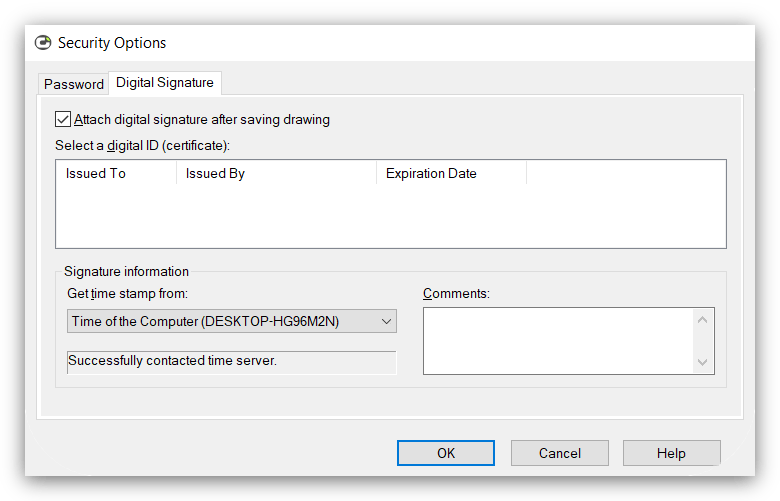
After executing the command, the Security options. By activating the “Attach digital signature after saving the design”, you can:
- Select a digital ID (certificate)
- Add details to the signature, such as date/time stamps or comments
If your computer does not have a valid digital ID, LusoCAD will inform you.

2. SIGVALIDATE
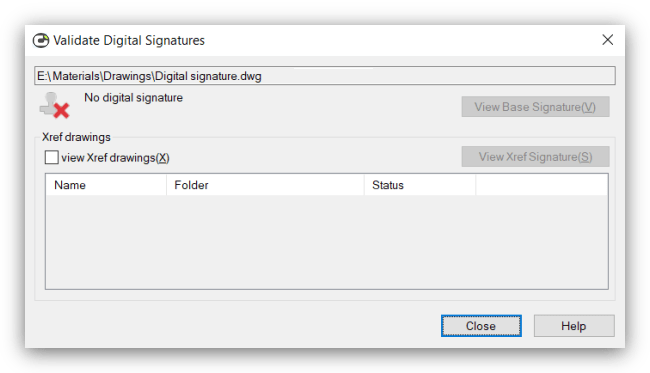
The command SIGVALIDATE checks that the digital signature of a design is still valid.

After executing the command, LusoCAD displays the dialogue box Validate Digital Signatures:
- If the design has been tampered with, validation will fail
- If the file is not signed, LusoCAD will display a warning
3. SIGWARN
The system variable SIGWARN controls whether LusoCAD shows the window Content of the Digital Signature when opening a signed file.
- SIGWARN = 0 → No warning displayed
- SIGWARN = 1 → Warning displayed when opening a signed file

Supported file formats
Digital signatures can only be applied to files compatible with the drawing formats of LusoCAD 2000 or later.
How to Attach a Digital Signature to a Single Design
Follow these steps:
Method 1: Via the Tools Menu
- Open Tools → Options
- Go to the System
- Click on Security options
Method 2: Via the Save As Menu
- Open File → Save As
- In the dialogue box, click Tools → Digital Signatures
Then:
- Activate Attach Digital Signature After Saving the Design
- (Optional) Add a timestamp or comment
How to Attach a Digital Signature to Multiple Drawings
LusoCAD allows you to sign several drawings in batches:
- Open Windows Start Menu → All Programmes → LusoCAD → Attach Digital Signatures
- Click on Add files
- Select all the files you want to sign
- Choose a digital ID (certificate)
- Select a date/time stamp service (optional)
- Add comments if necessary
- Click on Sign Files
If a file is read-only, LusoCAD will ask you how you want to proceed:
- Yes: sign this file
- Use the same answer for everyone: apply the same choice to all read-only files
- No: ignore this file
- Cancel: stop the signing process
If your digital ID has medium or high security, LusoCAD may request additional confirmation during the process.
Upon completion, a summary is displayed showing how many files have been successfully signed.
Signed files display “Signed” in the status column.

 English
  Portuguese
  Spanish