

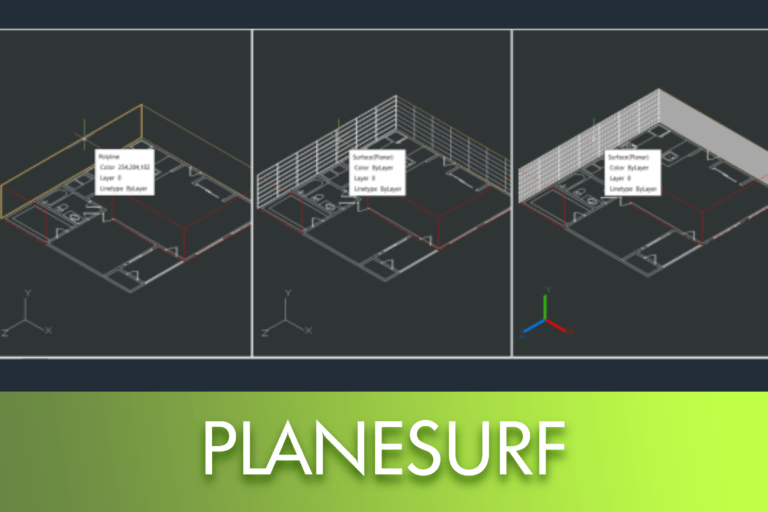
Command PLANESURF Overview
Surface modelling plays an important role in many CAD workflows, enabling users to define geometry beyond simple wireframes. One of the most commonly used surface tools is PLANESURF, which allows for the creation of planar surfaces for visualisation, modelling, and subsequent operations on surfaces or solids. This command offers flexible options, enabling the creation of planar surfaces from existing closed objects or by directly defining a rectangular area within the drawing.
The command PLANESURF It is used to create a flat surface by selecting closed objects or indicating two opposite corners of a rectangular surface. The created surface is always parallel to the current work plane.
How to Access the PLANESURF Command
The command PLANESURF can be accessed in various ways, depending on the workspace in use:
In the 2D Drawing Workspace
Select:
Surface > Plane, as shown in the interface menu.

2. In the Classic LusoCAD Workspace
Access:
Draw > Modelling > Surfaces > Planar, as indicated in the menu structure.

3. Via the Command Line
Introduction PLANESURF on the command line and press Enter.

Step-by-step guide
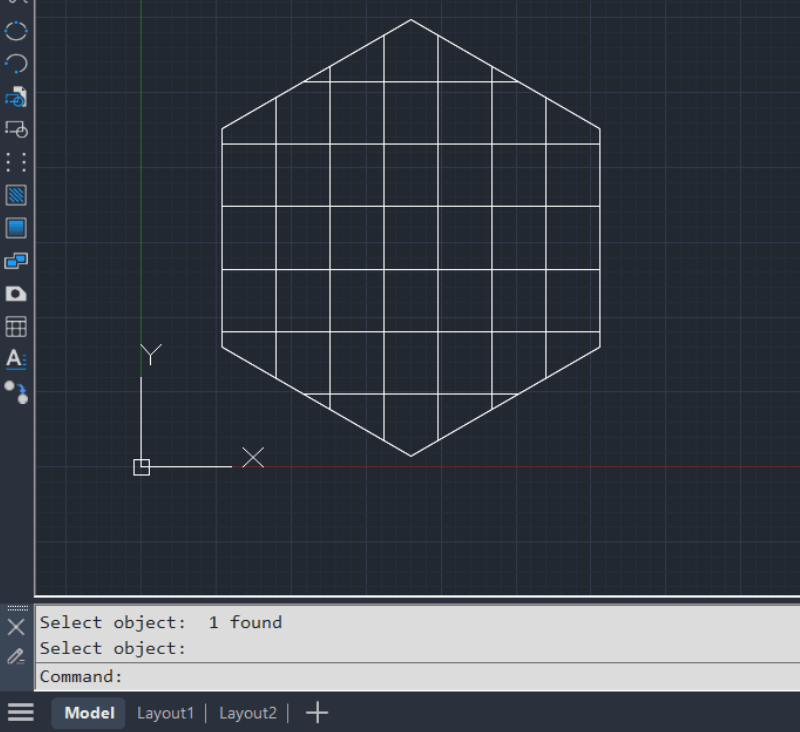
Method 1: Create a Flat Surface from Closed Objects
- Start the command PLANESURF.
- When requested, select the option Object.
- Select a closed object, such as a closed polyline, a circle, or another closed boundary.
- After selection, LusoCAD automatically creates a flat surface based on the selected object.

Method 2: Create a Flat Surface by Specifying Corners
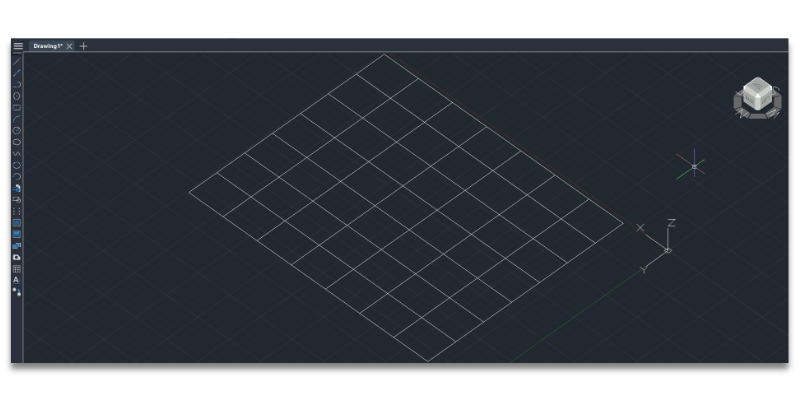
- Start the command PLANESURF.
- Indicate the first corner of the rectangular surface.
- When requested, indicate the opposite corner.
- A flat surface is created, aligned parallel to the current work plane.

Quick Tip
To control the number of isoparametric lines displayed on the surface, adjust the system variables SURF and SURFV. This modification of these values allows you to fine-tune how the surface is visually displayed, without altering the actual geometry.

 English
  Portuguese
  Spanish