

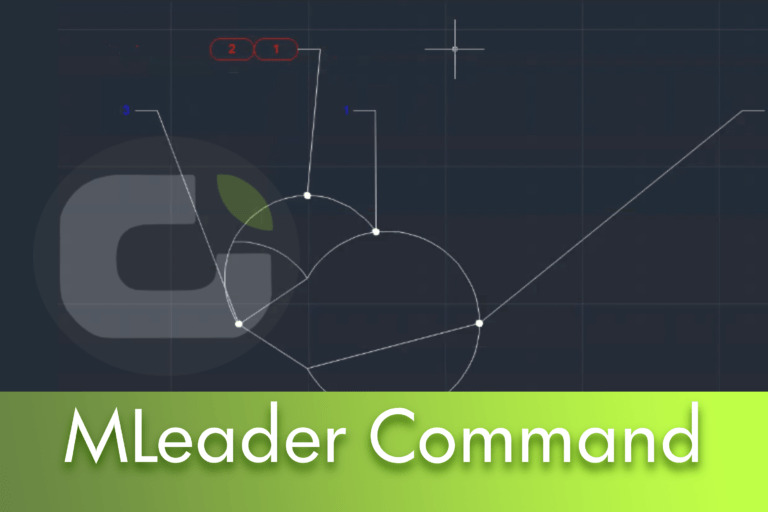
What is a multileader?
A multiline leader in LusoCAD is a set made up of:
- A arrow which points to a point in the drawing.
- A call line (leader's line).
- A “landing” (small horizontal/vertical section before the text).
- A annotation, which can be text or a block.
Its function is to relate a note, number or symbol to a concrete element of the drawing, without overloading the immediate area of that element with text.
How to insert a leader from the ribbon or by command
You can create a leader in two ways:
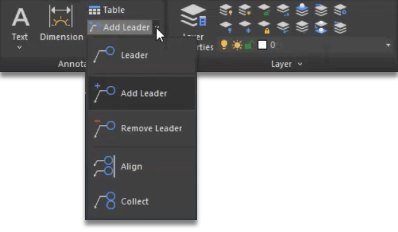
From the Ribbon
- Go to the Annotation.
- Select the Multileader (multiline leader).
By command
- Write
LEADERorMLEADERin the command line and press Enter.
- Write
After activating the command:
- Select the point in the drawing where the leader's arrow will point.
- Move the mouse to define the position of the text or annotation.
- Write the leader's contentThe example uses numbers, but you can write free text, codes, references, etc.
You can repeat the procedure to create several leaders around the same object, for example to number different parts of a piece.
Additional leader commands on the ribbon
On the multiline leader options ribbon you'll find specific commands for adjusting leaders you've already created. The most important ones are:
1. Add a leader
Objective: make the same annotation point to several points on the drawing.
- Select Add a leader on the Ribbon.
- Choose the existing leader to which you want to add another arrow.
- Repeat the point selection and arrow placement process as usual.
This is useful when the same note or number describes more than one element, avoiding duplicate text.
2. Remove leader
Objective: delete one of the arrows from a multileader without deleting the entire annotation.
- Select the command Remove leader.
- Click on multileader which contains several arrows.
- Then select the specific arrow (leader) that you want to eliminate.
This way you can simplify an annotation that used to point to several points and now only needs one.
3. Align leaders
Objective: place several leaders on the same trajectory (alignment) to obtain a cleaner, more organised design.
Typical example: several leaders with the same quote You commented that they are visually misaligned.
General steps:
Execute the aligning leaders (for example,
MLEADERALIGN, depending on the version).Select all the leaders you want to align yourself with.
Indicate which one will serve as reference leader (guide).
Use the mouse to set the alignment:
- It could be horizontal or vertical.
- To ensure horizontal alignment, activate the Ortho Mode.
Click to set the final position.
In the end, all the leaders are perfectly aligned, improving the legibility of the design.
Personalisation through multileader styles
We are not always satisfied with the way our leaders look. You might want to:
- Change the arrow size.
- Adjust the text colour and size.
- Change the landing length.
- Change the type of line or the thickness.
All this is controlled through the multileader styles.
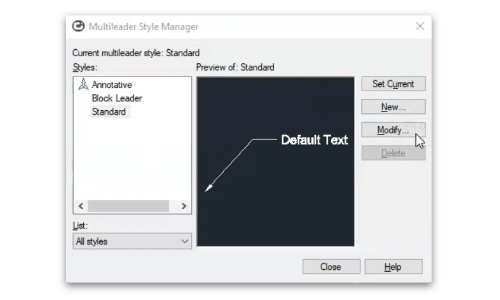
Open the multileader styles window
- Write
MLEADERSTYLEin the command line. - A window opens in which all the available styles are listed.
- Select the style you're using (for example, Standard) and click on Modify.
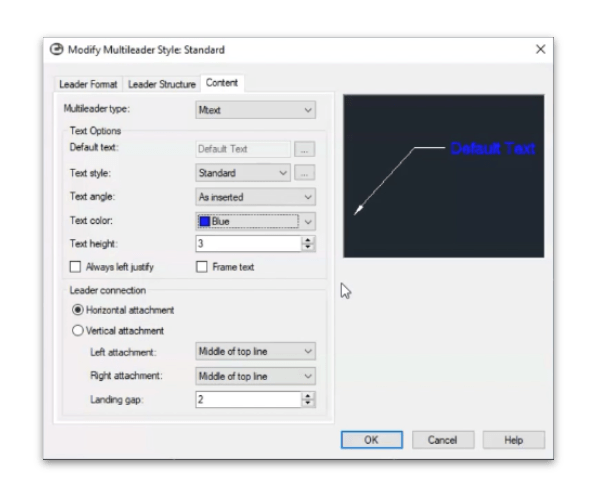
Content“ tab”
In the Contents you can configure everything related to the text or annotation:
- Text colour.
- Font size.
- Angle of rotation of the text.
- Other options related to the presentation of the annotation.
Here you define how the “written” part of the leader will be presented in your drawing.
Leader format“ tab”
In the Leader format you control the appearance of the leader himself:
- Line type of the leader.
- Size and shape of the arrow.
- Landing length.
- Possibility of the leader being a spline (smooth curved line).
- Line thickness.
Once you've applied the changes, you'll immediately see how the style is updated in the new leaders created with that style (and, depending on the configuration, also in the existing ones).
Create a new leader style with blocks
As well as working with text, you can set up leaders whose content is a block, ideal for number labels within a shape (circle, rectangle, hexagon, etc.).
Creating a new style
- Open
MLEADERSTYLE. - Create a new style (for example, Block leader) or duplicates an existing one.
- No Content tab, look for the type of annotation.
- Instead of MText or text, select Block.
Select the block
When choosing block as the content type:
- You can select one predefined block (for example, a labelled circle).
- Or choose one of your own own blocks already created in the drawing, which can have a numeric or text attribute.
Once configured:
- Insert the leader as usual (arrow point → annotation position).
- The programme asks you for label value: this type of leader usually uses numbers, and the system can restrict the input to numerical values.
Places two or more block leaders to prepare for the use of special subcommands.
Collect“ sub-command with bloc leaders
When working with several block leaders marking similar elements, you can use the subcommand Collect to group them together.
Objective: group two or more block leaders, keeping their content, but using only a call line.
Results:
- The content (e.g. the same number or symbol) remains consistent.
- Visually, the design becomes simpler, as several arrows can converge or be managed as a more organised whole.
This approach is especially useful in complex plants, where many similar labels can overwhelm the reader.
Summary and good practice
- The multiline leaders are essential for linking clear notes to specific elements of the drawing.
- You can insert them from the Annotation Ribbon or by commands (
LEADER,MLEADER). - Use Add a leader and Remove leader to reuse the same annotation at various points or simplify it.
- The aligning leaders helps maintain a clean and professional presentation by aligning leaders horizontally or vertically.
- The multileader styles (
MLEADERSTYLE) make it possible to normalise the appearance of arrows, lines, text and blocks. - The leaders with a bloc are ideal for numeric labels inside shapes, and the subcommand Collect helps to group them together without losing information.

 English
  Portuguese
  Spanish