

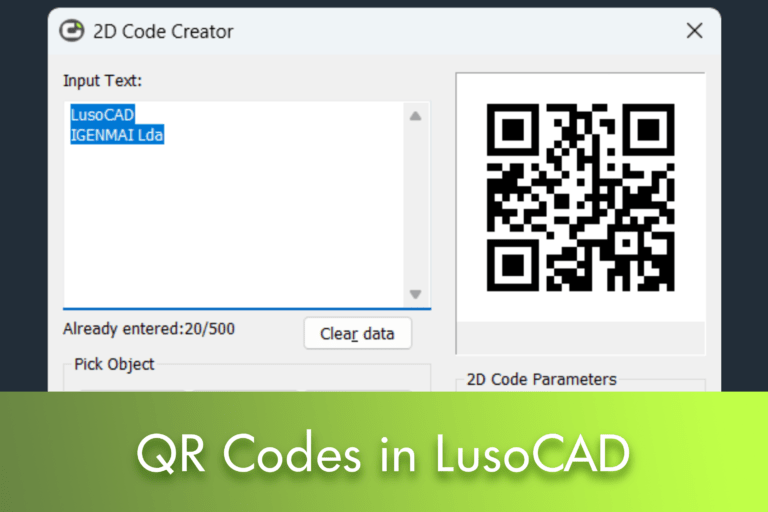
Modern CAD drawings contain much more than simple geometry. Project information, drawing references, equipment data, maintenance records, and links to documentation are increasingly important elements in the day-to-day lives of professionals. One of the most practical ways to associate this information with a drawing is through QR codes.
No LusoCAD, the tool QR code allows you to create scannable codes directly from drawing data and insert them into the project. Whether you want to link a drawing to technical documentation, identify assets, or facilitate access to on-site information, QR codes can make the process faster and more efficient.
O que é um Código QR?
A QR Code (Quick Response Code) is a two-dimensional barcode capable of storing different types of information, such as:
- Text
- Website addresses
- Contacts
- Product information
- Project references
- Equipment data
Any smartphone or tablet equipped with a camera can read a QR code and display the information stored in it.
As QR codes can store more information than a traditional barcode, they are widely used in construction, industry, logistics, asset management and facility maintenance.
Why use QR codes in LusoCAD?
Adding QR codes to designs makes information more accessible and easier to consult.
For example, a QR code can include:
- Drawing identification data
- Review Information
- Equipment specifications
- Maintenance instructions
- Links to cloud documentation
- Block attributes
Instead of manually searching for a document or datasheet, simply scan the code to immediately access the desired information.
This functionality may be particularly useful in:
- Architecture projects
- Engineering projects
- Manufacturing drawings
- Asset management
- Building management and maintenance
How to Access the QR Code Tool
There are two ways to open the QR Code tool in LusoCAD.
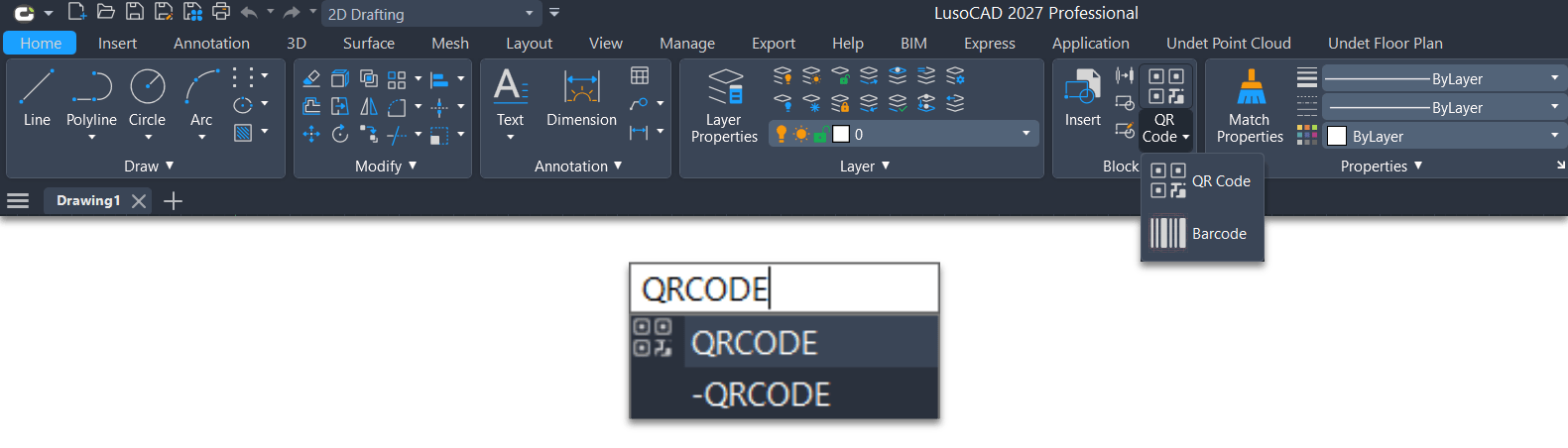
Method 1: Via the Ribbon
Navigate to:
Method 2: Via Command Line
Write
and then Enter.
The window 2D Code Creator will be presented.
Meet the QR Code Window
The tool provides various options for creating QR codes from information already present in the drawing.
Let's analyse the most important ones.
Input Text
This area is used to define the information that will be converted into a QR code.
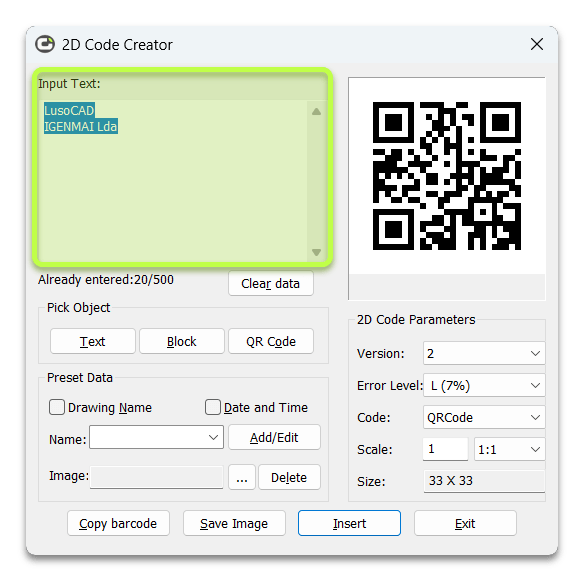
Can
- Enter information manually
- Gather information directly from the drawing
- Use predefined fields
All content entered will be converted to QR code.
Data Entered
Show:
- The amount of information entered
- The maximum supported limit
This helps to avoid creating excessively long code.
Clear Data
Remove all content currently present in the input area.
It's a useful option when creating multiple QR codes in the same session.
2. Select Object
One of the most interesting functionalities.
Text
Allows selection of existing text objects in the drawing.
The selected content is automatically transferred to the data entry area.
Block
Allows selection of blocks with attributes.
LusoCAD automatically extracts:
- Attribute tags
- Attribute values
This functionality is especially useful for stamps, equipment and identification plates.
2D code
Allows selecting an existing QR code in the drawing.
The tool reads and displays the information stored in that code.
3. Predefined Data
To avoid manually inputting repetitive information, LusoCAD allows certain drawing data to be automatically added.
Drawing Name
When this option is active, the filename is automatically added to the QR code.
It is a useful feature for:
- Drawing identification
- Document control
- Revision Management
Date and Time
Automatically adds the current date and time.
This can be useful for:
- Emissions register
- Project reviews
- Inspection reports
4. Custom Fields
The QR Code tool allows for the creation of custom fields to normalise the information used by the company.
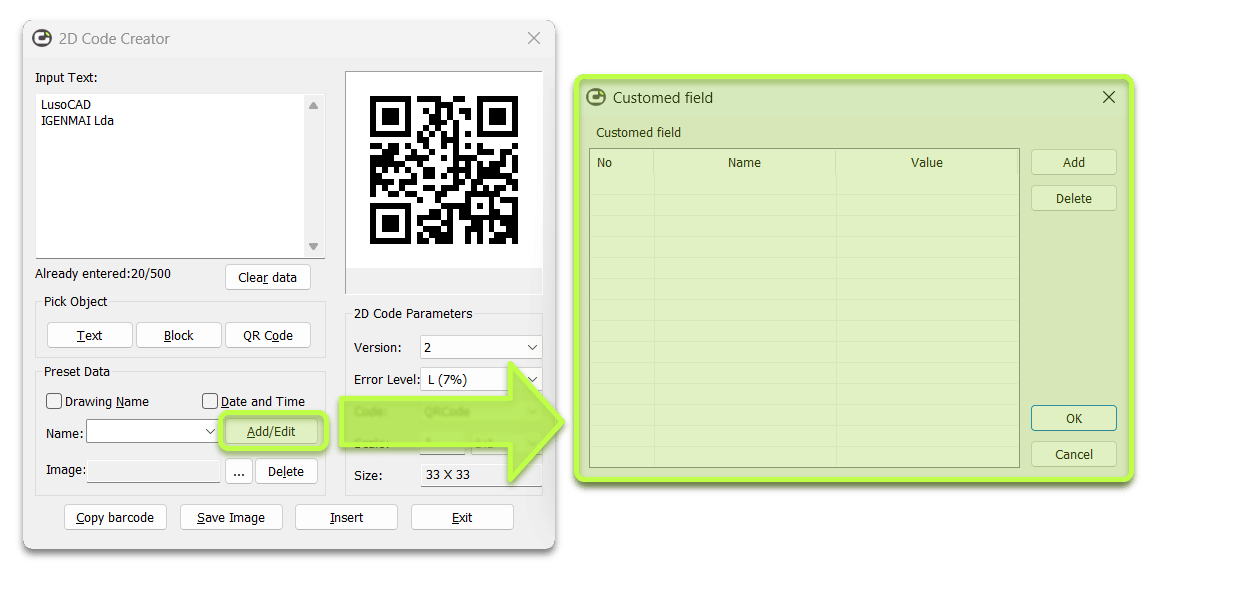
Number
Define the field number.
Name
Define the field designation.
For example:
- Project Number
- Equipment ID
Courage
Define the information associated with the field.
Add
Create a new custom field.
Delete
Removes a previously created field.
5. Add Images to QR Code
It is also possible to add images to the QR code.

Among the most common uses are:
- Company logos
- Department logos
- Product images
- Custom graphic elements
The supported formats include:
- JPEG
- Loss-making
- PNG
- I'm a bit confused by "TIF". Could you please provide more context so I can translate it accurately?
- TGA
QR Code Parameters
The tool provides various settings that control code generation.

Version
Sets the complexity of the QR code.
As the amount of information increases, the version required also increases.
LusoCAD adjusts this setting automatically when necessary.
Error Correction Level
QR codes incorporate mechanisms that allow them to be scanned even when part of the code is damaged or partially obscured.
Higher correction levels improve reliability, although they also increase the size of the code.
Code Type
Specifies the encoding system used.
Depending on the configuration, different encoding formats may be available.
Scale
Controls the print size of the QR code.
This definition is particularly important when drawings are printed at different scales.
As the QR code is inserted as a block, an appropriate scale helps to ensure it can be read correctly after printing.
Size
Sets the overall dimensions of the QR code.
The available error correction levels include:
- H (30%)
- Q (25%)
- M (15%)
- L (7%)
Higher values offer greater tolerance to damage or imperfections in the print.
Final Options Available
At the bottom of the window, there are several useful functions.
Copy Code
This allows you to copy an existing QR code from the drawing.
It is particularly useful for quickly creating similar codes.
Save Image
Export the QR code as an image file.
The image can subsequently be used in:
- Reports
- PDFs
- Word documents
- Presentations
- Other CAD drawings
Insert
Insert the generated QR code directly into the drawing as a block.
This is normally the most used option.
Exit
Close the window and save the current settings for future sessions.
Practical Applications of QR Codes in LusoCAD
Some examples of its use include:
- Link drawings to BIM documentation
- Connecting equipment to maintenance manuals
- Track assets and inventory
- Store project data or revisions
- Make technical specifications available
- Create quick access to documentation stored in the cloud
As QR codes become more common in the construction and engineering sectors, their integration into CAD workflows allows for improved information management and increased project efficiency.
Conclusion
The tool LusoCAD QR Code It offers a simple and effective way to link drawings to digital information. Whether for incorporating project data, reusing block attributes, or making documentation available via scannable codes, this functionality can significantly improve communication between project, construction, and maintenance teams.
By understanding the different options available, you can create reliable and useful QR codes throughout the entire project lifecycle.

 English
  Portuguese
  Spanish