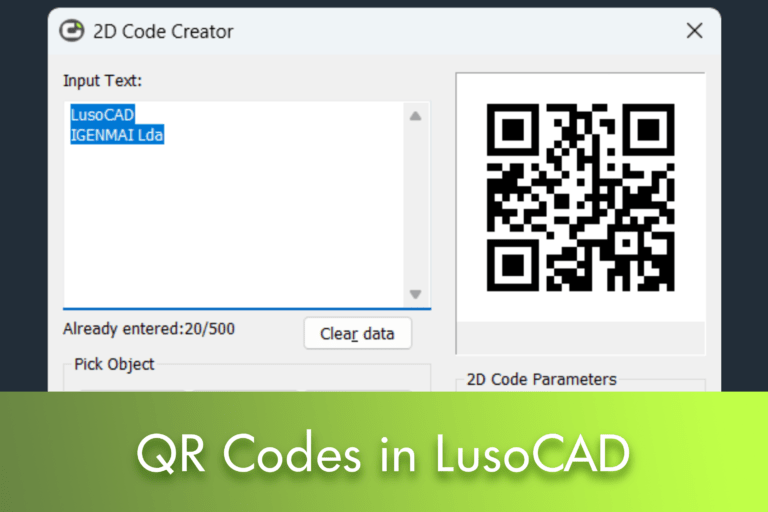
5 Things You Should Know About the QR Code Tool in LusoCAD

In this article, we explore what the QR Code tool is, how to access it, and what the main options available are.

Modern CAD drawings contain much more than simple geometry. Project information, drawing references, equipment data, maintenance records, and links to documentation are increasingly important elements in the day-to-day lives of professionals. One of the most practical ways to associate this information with a drawing is through QR codes.

No LusoCAD, the tool QR code allows you to create scannable codes directly from drawing data and insert them into the project. Whether you want to link a drawing to technical documentation, identify assets, or facilitate access to on-site information, QR codes can make the process faster and more efficient.


O que é um Código QR?

A QR Code (Quick Response Code) is a two-dimensional barcode capable of storing different types of information, such as:

Any smartphone or tablet equipped with a camera can read a QR code and display the information stored in it.

As QR codes can store more information than a traditional barcode, they are widely used in construction, industry, logistics, asset management and facility maintenance.


Why use QR codes in LusoCAD?

Adding QR codes to designs makes information more accessible and easier to consult.

For example, a QR code can include:

  • Drawing identification data
  • Review Information
  • Equipment specifications
  • Maintenance instructions
  • Links to cloud documentation
  • Block attributes

Instead of manually searching for a document or datasheet, simply scan the code to immediately access the desired information.

This functionality may be particularly useful in:

  • Architecture projects
  • Engineering projects
  • Manufacturing drawings
  • Asset management
  • Building management and maintenance

How to Access the QR Code Tool

There are two ways to open the QR Code tool in LusoCAD.
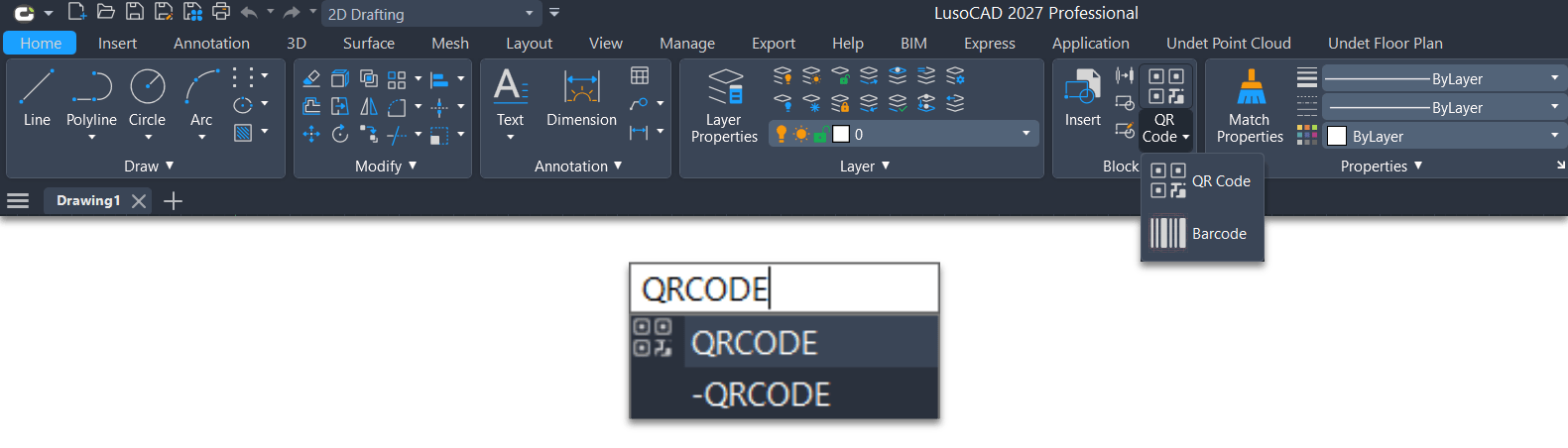
QR Command in LusoCAD

Method 1: Via the Ribbon

Navigate to:

Start → Block → QR Code

Method 2: Via Command Line

Write

QR code

and then Enter.

The window 2D Code Creator will be presented.


Meet the QR Code Window

The tool provides various options for creating QR codes from information already present in the drawing.

Let's analyse the most important ones.


Input Text

This area is used to define the information that will be converted into a QR code.
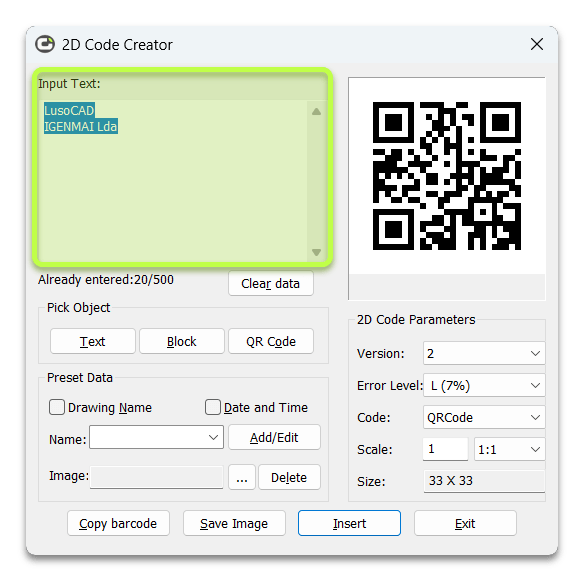
Can

  • Enter information manually
  • Gather information directly from the drawing
  • Use predefined fields

All content entered will be converted to QR code.


Data Entered

Show:

  • The amount of information entered
  • The maximum supported limit

This helps to avoid creating excessively long code.


Clear Data

Remove all content currently present in the input area.

It's a useful option when creating multiple QR codes in the same session.


2. Select Object

One of the most interesting functionalities.


Text

Allows selection of existing text objects in the drawing.

The selected content is automatically transferred to the data entry area.


Block

Allows selection of blocks with attributes.

LusoCAD automatically extracts:

  • Attribute tags
  • Attribute values

This functionality is especially useful for stamps, equipment and identification plates.


2D code

Allows selecting an existing QR code in the drawing.

The tool reads and displays the information stored in that code.


3. Predefined Data

To avoid manually inputting repetitive information, LusoCAD allows certain drawing data to be automatically added.


Drawing Name

When this option is active, the filename is automatically added to the QR code.

It is a useful feature for:

  • Drawing identification
  • Document control
  • Revision Management

Date and Time

Automatically adds the current date and time.

This can be useful for:

  • Emissions register
  • Project reviews
  • Inspection reports

4. Custom Fields

The QR Code tool allows for the creation of custom fields to normalise the information used by the company.
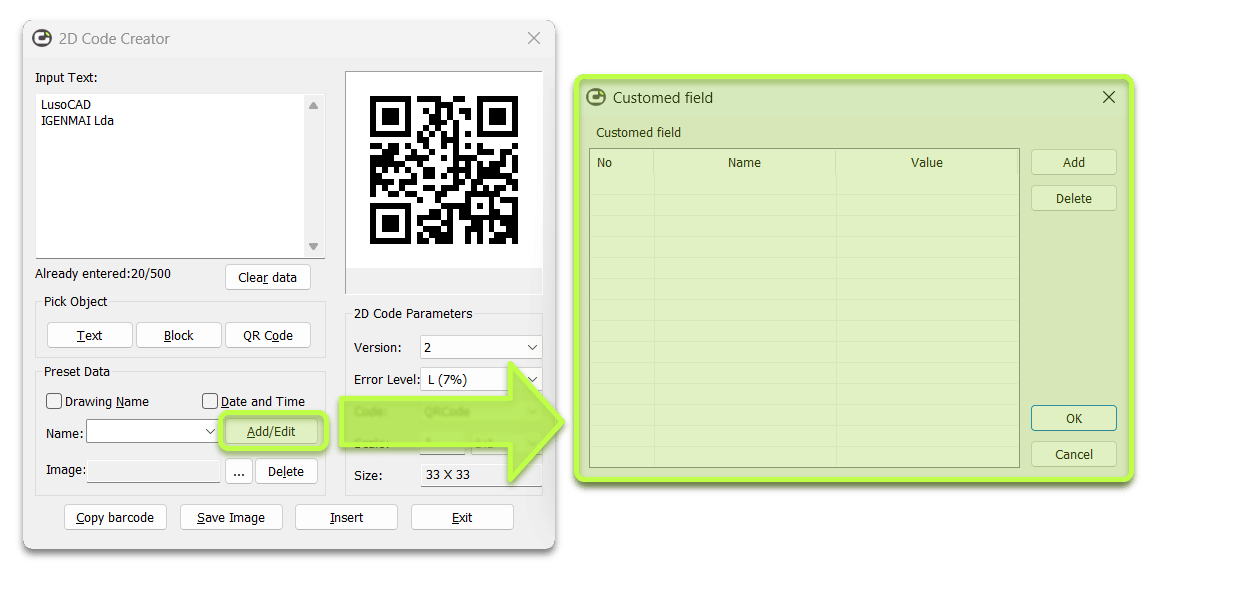

Number

Define the field number.


Name

Define the field designation.

For example:

  • Project Number
  • Equipment ID

Courage

Define the information associated with the field.


Add

Create a new custom field.


Delete

Removes a previously created field.


5. Add Images to QR Code

It is also possible to add images to the QR code.

Among the most common uses are:

  • Company logos
  • Department logos
  • Product images
  • Custom graphic elements

The supported formats include:

  • JPEG
  • Loss-making
  • PNG
  • I'm a bit confused by "TIF". Could you please provide more context so I can translate it accurately?
  • TGA

QR Code Parameters

The tool provides various settings that control code generation.


Version

Sets the complexity of the QR code.

As the amount of information increases, the version required also increases.

LusoCAD adjusts this setting automatically when necessary.


Error Correction Level

QR codes incorporate mechanisms that allow them to be scanned even when part of the code is damaged or partially obscured.

Higher correction levels improve reliability, although they also increase the size of the code.


Code Type

Specifies the encoding system used.

Depending on the configuration, different encoding formats may be available.


Scale

Controls the print size of the QR code.

This definition is particularly important when drawings are printed at different scales.

As the QR code is inserted as a block, an appropriate scale helps to ensure it can be read correctly after printing.


Size

Sets the overall dimensions of the QR code.

The available error correction levels include:

  • H (30%)
  • Q (25%)
  • M (15%)
  • L (7%)

Higher values offer greater tolerance to damage or imperfections in the print.


Final Options Available

At the bottom of the window, there are several useful functions.


Copy Code

This allows you to copy an existing QR code from the drawing.

It is particularly useful for quickly creating similar codes.


Save Image

Export the QR code as an image file.

The image can subsequently be used in:

  • Reports
  • PDFs
  • Word documents
  • Presentations
  • Other CAD drawings

Insert

Insert the generated QR code directly into the drawing as a block.

This is normally the most used option.


Exit

Close the window and save the current settings for future sessions.


Practical Applications of QR Codes in LusoCAD

Some examples of its use include:

  • Link drawings to BIM documentation
  • Connecting equipment to maintenance manuals
  • Track assets and inventory
  • Store project data or revisions
  • Make technical specifications available
  • Create quick access to documentation stored in the cloud

As QR codes become more common in the construction and engineering sectors, their integration into CAD workflows allows for improved information management and increased project efficiency.

Conclusion

The tool LusoCAD QR Code It offers a simple and effective way to link drawings to digital information. Whether for incorporating project data, reusing block attributes, or making documentation available via scannable codes, this functionality can significantly improve communication between project, construction, and maintenance teams.

By understanding the different options available, you can create reliable and useful QR codes throughout the entire project lifecycle.

en_GBEnglish

LusoCAD TRIAL Version

Spanish version:

English version:

LusoCAD More Info

LusoCAD TRIAL Version

LusoCAD

Below you will find a comparative table of the main functionalities available in LusoCAD 2027 and AutoCAD® 2027.

LusoCAD vs AutoCAD®

LusoCAD 2027

AutoCAD®2027

StdProPremiumLTFull
64-bit Support
.dwg for AutoCAD version R14 to latest
.pat,.shx,.lin and etc
Password Protection
File Recover and Audit
Purge
Etransmit
Sheet Set Manager
CAD Standard .dwsX
DWF Underlay
PDF Underlay
DGN Import and Underlay
DWG Convert
Import to WMF, SAT, 3DSPartiallyPartially
Export to DWG, DWF, DWFX, WMF, SAT, STL, EPS, DXX, BMP, EMFPartiallyPartially
Plot and Publish to PDF
Publish to DWF 2D & 3D
IFC Import/Export and EditXXX
RVT Import and EditXXX
Single-document Mode
Digital Signature
Batch Digital Signing Tool
Reset Settings to Default.
Mark UpXXX
STEP/IGES FilesXX
DWGUNITS
Drawing MergeXX
Connected Support FilesXXXX
Activity InsightsXXXX
Connected ReferencesXXX

LusoCAD 2027

AutoCAD®2027

StdProPremiumLTFull
3D Modelling Workspace
Quick Properties
Block Palette XXX
Dark Theme
Hidden Message Settings
WorkSpace command
CUI Menus and Toolbars X
CUI Import & Export
Drag and Drop Customisation XX
Visual Menu Customisation
Ribbon/Classic
Properties Palettes
Design Centre/Tool Palette/Xref Palette
Command Line
Clean Screen
Dynamic Input and Auto Complete
Clickable Command Line Options XXX
File Tab
Floating Windows XXX

LusoCAD 2027

AutoCAD®2027

StdProPremiumLTFull
Navigation CubeX
3D Mouse Device Adaption
Lasso Selection
SELECTIONCYCLING
Right-Click + Drag Method
Selection Preview
Selection Effect Customisation XXX
Quick Select
Select Similar
Multifunctional Grips
OSnap
Grid and Snap
Polar & OTrack
Group
Distance from Endpoint and Divide Segments XX
ADDSELECTED Command
Multiple command

LusoCAD 2027

AutoCAD®2027

StdProPremiumLTFull
Quick Measure by Hovering Rapid Distance Rapid Distance Rapid Distance
DIMCENTER Command PartiallyPartially
Reassociate Dimension
DIMTOFFSET XX
Standard Dimensions
Associative Dimension
Dimension Break
Quick Dimension
Qleader
Dynamic Dimensions
Multileaders
Voice Annotation XX

LusoCAD 2027

AutoCAD®2027

StdProPremiumLTFull
Auto ConstraintXXXX
Coincident ConstraintXX
Perpendicular ConstraintXX
Parallel ConstraintXX
Tangent ConstraintXX
Horizontal ConstraintXX
Vertical ConstraintXX
Collinear ConstraintXX
Concentric ConstraintXX
Smooth ConstraintXXX
Symmetric ConstraintXX
Equal ConstraintXX
Fix ConstraintXX
Constraint SettingsXX
Delete ConstraintsXX
Show/Hide ConstraintXX

LusoCAD 2027

AutoCAD®2027

StdProPremiumLTFull
Linear ConstraintXXX
Horizontal ConstraintXXX
Vertical ConstraintXXX
Aligned ConstraintXXX
Angular ConstraintXXX
Radius ConstraintXXX
Diameter ConstraintXXX
Constraint SettingsXXX
Delete ConstraintsXXX
Show/Hide ConstraintXXX
Parameters ManagerXXX
Dynamic Constraint ModeXXX
Annotational Constraint ModeXXX

LusoCAD 2027

AutoCAD®2027

StdProPremiumLTFull
Mtext
Text
Multi-language Character Set
In-place Text Editor
Mtext Superscript and Subscripts
Support .shx and .ttf font
Spelling
Fields
Text Align / Text Match Text AlignText Align
Change Text X X
Mtext Editor
Text Incremental Copy X X
Text on lineX X
Statistics SummationX X
Check spelling in Mtext
Revcloud
Wipeout X X
Automatic Text Numbering

LusoCAD 2027

AutoCAD®2027

StdProPremiumLTFull
Auto Layer XX
Change to ByLayer (SETBYLAYER)
Layer Properties Manager
Layer States Manager
Layer Translator X
Layer Walk
Layer Previous
Layer Isolate
Layer Unisolate
Layer Lock
Layer Unlock
Layer Unlock All XX
Lock Other Layers XX
Layer Freeze
Freeze Other Layer XX
Thaw All Layers
Layer Off
Off Other Layer XX
Turn All Layers On
Layer Merge
Layer Delete
Layer Match
Viewport Layer

LusoCAD 2027

AutoCAD®2027

StdProPremiumLTFull
Hatch objects from Tool Palettes
Gradient Hatches
Custom Patterns
Background and Colour for Hatch Patterns
Trim/Extend of/to Hatch Pattern Entities
Superhatch X
Transparency for Hatch
Trim/Extend/Hatch preview

LusoCAD 2027

AutoCAD®2027

StdProPremiumLTFull
Raster Image Support (Clipping, Transparency, ...)
Support Kinds of Image Files (bmp, jpg, png, tga, tif, gif, pcx, ...)

LusoCAD 2027

AutoCAD®2027

StdProPremiumLTFull
Lockup Command X X
Layout Merge
Synchronise Viewports
Breakpoint Check (CLOSELINE)XX
Fast Select (FASTSEL)
Change Base XX
Layer Draw Order XX
Stat, Blocks Number Count CommandCount Command
Area TableXX
Break Object XX
Block Break XX
Graphic Compare XX
Batch Purge XX
Layout by Path Array pathArray path
Line2pl XX
SptplXX
LusoCAD Tools XX
Plot tools XX
Drawing Compare DWG CompareDWG Compare
Delete Duplicate Objects (OVERKILL)
Drawing Lock XX
Block Replace

LusoCAD 2027

AutoCAD®2027

StdProPremiumLTFull
Hardware Acceleration X X
Break at Point
Region X
Areasum XX
Draw and Modify Commands
Outline Objects XX
Align Tool / Arrange Tool XX
Real Time Pan & Zoom
SteeringWheels XXX
Magnifier XXX
Redraw and Regeneration
Layout and Paper Space
Non-rectangular viewports
Layout Viewport settings
Multilines and Multiline Styles X
Block create and insert
Redefine Block
Refedit
Dynamic Block - Create/Insert/View Partially
Block Attribute Definition
Barcode & QRcode XX
Dynamic Block Editor (BEDIT) Partially
Table ToolsXX
Table
AutoXLSTableXX
Make Shape
Import Layout as Sheet
Viewport Scale
Attribute Increment XX
Define Layout Viewport from ModelSpace (M2LVPORT) XX
Security X
Free Scale XX
Hatch to Back
Reverse
Synchronise Attributes
Clip
Array Options
Symmetric Draw XX
Smart centrelines/center marks XXX
Invert Fillet XX
Offset Multiple
Helix
Cloud Storage
Design share XX
Shortcut Customisation (CUSTACC) XX
Match Properties Across Drawings
Hyperlink
Digitizer Integration
Scale List
Pline Boolean XX
Xref path repair XXX
Undo/Redo Preview
VPMAX/VPMIN
Table
Barcode & QR Code XX
Non-rectangular viewports
Block Attribute Definition
Dynamic Block Create/ Insert/View/Edit Partially
Smart Blocks XXXX
Geometry TinkeringXXX
AI AssistantXXX
Forma Data Management EssentialsXXXX
CheckoutXXXX

LusoCAD 2027

AutoCAD®2027

StdProPremiumLTFull
POLYSOLID XX
PLANESURF XX
SURFOFFSET XX
CONVTOMESH XX
CONVTOSOLID XX
CONVTOSURFACE XX
CONVTONURBS XX
Point Cloud X
3D Edition Grips XX
Section Plane XX
Flatshot XX
Solid editing XX
3D Surfaces X
ACIS Modelling & Editing XX
Camera XXXX
3D Orbit options X
Render XX
Visual Styles ManagerXX
Solprof / Solview / Soldraw XX

LusoCAD 2027

AutoCAD®2027

StdProPremiumLTFull
CTB & STB Plot Style Files
Built-in Print Driver
Import & Editing of Page Setups
Publish
Hide and Shade Plot
Batch Print XX
Arrange Frame XX
Plot Styles Table Editor
3D Print Studio XXXX
AUTOPUBLISH

LusoCAD 2027

AutoCAD®2027

StdProPremiumLTFull
Load Python
LISP Debugger X
LISP vl-, vlr-, vla- and vlax X
LISP Encryption
(SDS/ADS) X
DCL / DCL engine / COM API X
Visual Basic for Applications X
VBA VBI projects support XDVB
.Net Framework X
GRX (LusoCAD Runtime eXtension) XARX
CUI Menu Support/Diesel Expressions
Diesel Expressions
MNU and MNS File Support
API (Toolbar & Menu Customisation) X
Entity Data EditorX
Action Recording and Action MacrosXXXX

LusoCAD 2027

AutoCAD®2027

StdProPremiumLTFull
Subscription
Perpetual Licence XX
Stand-alone USB dongle XX
Network USB dongle XX
Stand-alone Licence
Network Licence XX